










StoneShot Learning > Email Marketing > Dynamic Emails
Dynamic Emails
We write and talk lots about personalization as it’s so critical to engagement.
We didn’t quite write the book on it but we made a model, did some professional investor research on compliance and explain how you can take personalization through to your website. Oh, we also explain how it can save your time too.
So personalization is a Good Thing. Let’s put it into practice.
The simple stuff
You can place special codes into your StoneShot emails that merge in content dynamically. The simplest uses the recipient’s first name, here’s how it looks within an email.
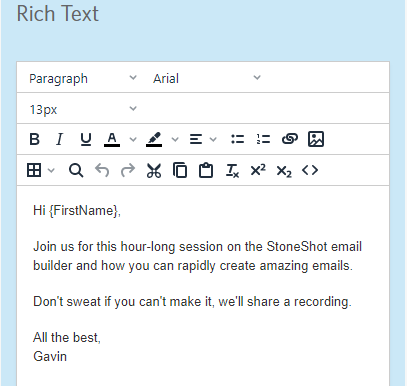
When the email gets sent, the StoneShot Platform will swap in the relevant first name and hey presto, you’ve achieved personalization at scale. There are many contact fields you can use in this way and we’ve made a list at the bottom of this page.
Sending from Sales/Relationship Managers
Most of our clients assign their contacts to a sales or relationship manager. This is usually assigned within CRM, where the sales manager is the contact owner. During the onboarding process, we guide you through mapping CRM fields to StoneShot so the sales manager is connected to a StoneShot segment.
That means you can dynamically send emails from your Sales Managers. It applies to the sender name and email, and also a sign-off block you can add to your emails too. This example shows the Sales Manager’s name merged into the email.
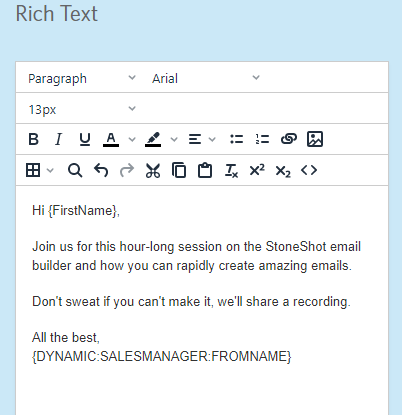
You can create complete content blocks for a sign-off so it includes the name, email, phone, photo, socials, etc.
Go to Options > Segments and pick the Sales Manager segment (it could have a different name in your account). Then go to the Dynamic Fields tab and click the New Dynamic Field button. Enter “SIGNOFF”.
You then need to make a sign off for each of your sales managers. Click the Segments tab, go into each sales manager and you’ll see a SIGNOFF field. Drop in the sign off as HTML and Text and you’re done. You can then use this dynamic field in your emails:
{DYNAMIC:SALESMANAGER:SIGNOFF}
If that all sounds horribly complex, don’t sweat. Contact us and we’ll help set it all up.
Segments
You can use any other segment you’ve created to merge in dynamic content as above. It could be based on demographic or geographic data you wish to use to personalize your emails.
Contact Custom Fields
You can add your own custom fields to extend the standard ones we provide against a contact.
Go to Options > Segments and pick the Custom Fields tab. Then click the New Custom Field button. Enter the field name (i.e. Dietary Requirements) and our platform will generate a System Name (in this case DIETARYREQUIREMENTS).
That’s given you an empty bucket against each of your contacts. You can populate the data either by mapping the field to your CRM or importing data from Excel. When that’s done, you can dynamically merge the data into your emails. In this case, you need to use {CUSTOMFIELD:DIETARYREQUIREMENTS:VALUE}.
Events
You’ll probably know that we have an event solution built into our platform. No? It allows you to centrally drive event registration and check-in, and it has some cool tools for generating stuff like certificates of attendance.
Rather than repeatedly entering the event, venue, speaker, agenda, etc onto each invitation, reminder, confirmation and follow-up (phew), you can use more automation. Just pop the info under Events, pick an event layout from our Email Library and you’re done.
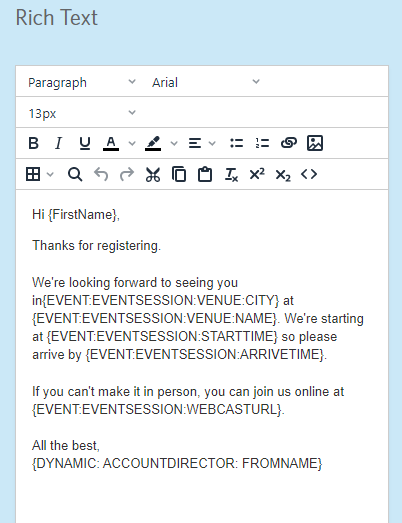
If you prefer coding, here’s a little taster of an event confirmation email. You can see all dynamic event fields at the bottom of this page.
Automating insights/blog emails
You can also automate the distribution of your insights/blog content. We’ve created a solution that picks up content from your website and allows your clients to choose content by topic. This is called Content Distribution System or CDS for short. It gives your clients a fantastic experience and saves you a ton of time on email build and send.
Automating Fund Document Distribution
Carrying on with our love of acronyms, we have a fund document distribution solution called DDS. This picks up a feed usually from your document provider and again allows your clients to follow funds of interest. There’s usually custom work involved in implementing it – contact hello@stoneshot.com for more info.
Today’s Date
This one is useful for newsletters and market commentary emails. You can add today’s date dynamically into your emails by adding {CURRENTDATE:ddd MMM d yyyy}. That will give you something like “Mon Feb 19 2024”, except it will be today’s date! All options are listed at the bottom of this page.
Conditional logic
Ok, we’re going to get a little more techie now. You’ve got this! (but we’re here if you need help).
So you’ve added a {FIRSTNAME} to your email but you’re worried about contacts that have nothing in First Name. You need an IF statement.
{IF:FIRSTNAME:HASVALUE}
Hi {FIRSTNAME}
{ELSE}
Dear client
{/IF}
So if First Name has a value, we’ll use it. If not, we’re going generic.
You can look for specific values too. This code block uses CITY against a contact but you could equally use a segment, event session/venue, custom contact field and more.
{IF:CITY:EQUALS:London}
Call our team in London on 020 7628 4444
{ELSEIF:CITY:EQUALS:New York}
Call our team in New York on (347) 352-8186
{ELSEIF:CITY:EQUALS:Singapore}
Call our team in Singapore on 3157 5127
{ELSE}
Send an email to support@stoneshot.com
{/IF}
We hope you enjoyed digging into dynamic emails. Here’s a complete list of the merge tags you can add to your emails, events and more.
FAQ
How do I update the dynamic Sales Manager sign-off details?
Dynamic Sales Manager sign-off details are managed in Options > Segments. Open the relevant Sales Manager Segment to view and edit their associated details. You can update the text and company information as required, but take care not to remove or alter any HTML code, as this may prevent the sign-off from displaying correctly. Once you have made your changes, click Save in the top-right corner and repeat the process for any remaining Sales Managers.
What is the easiest way to update a large number of Sales Manager segments in StoneShot?
If you need to update a large number of Sales Manager segments, there is currently no direct import option available to overwrite existing Sales Manager information in bulk.
The available options are:
- Manual updates: Each Sales Manager segment and its associated signoff details would need to be updated individually.
- Development work: A custom update process could be created to make the changes in bulk, but this would require development time and may involve an additional cost.
If you have a large number of updates required, please provide the details of the changes needed, and we can advise on the best approach.
Can I show a different salutation for contacts without a first name?
Yes, You can use {IF:FIRSTNAME:HASVALUE}Dear {FIRSTNAME}{ELSE}Hi{/IF}
Can I use one conditional statement for multiple Segments?
No. Each conditional statement can only be used for a single Segment. To display the same content for multiple Segments, you will need to duplicate the layout and apply a separate conditional statement to each copy.