









StoneShot Learning > Integrations > StoneShot for Sales – Managing Lists
StoneShot for Sales – Managing Lists
StoneShot for Sales gives you two types of lists to work with: Your Lists, lists you’ve created either in the StoneShot platform or here in SSFS, and Marketing Lists, the lists your marketing team has already built and shared with you. Lists created in StoneShot for Sales sync automatically with the main StoneShot platform, so changes made in one place are reflected in the other.
Viewing All Your Lists
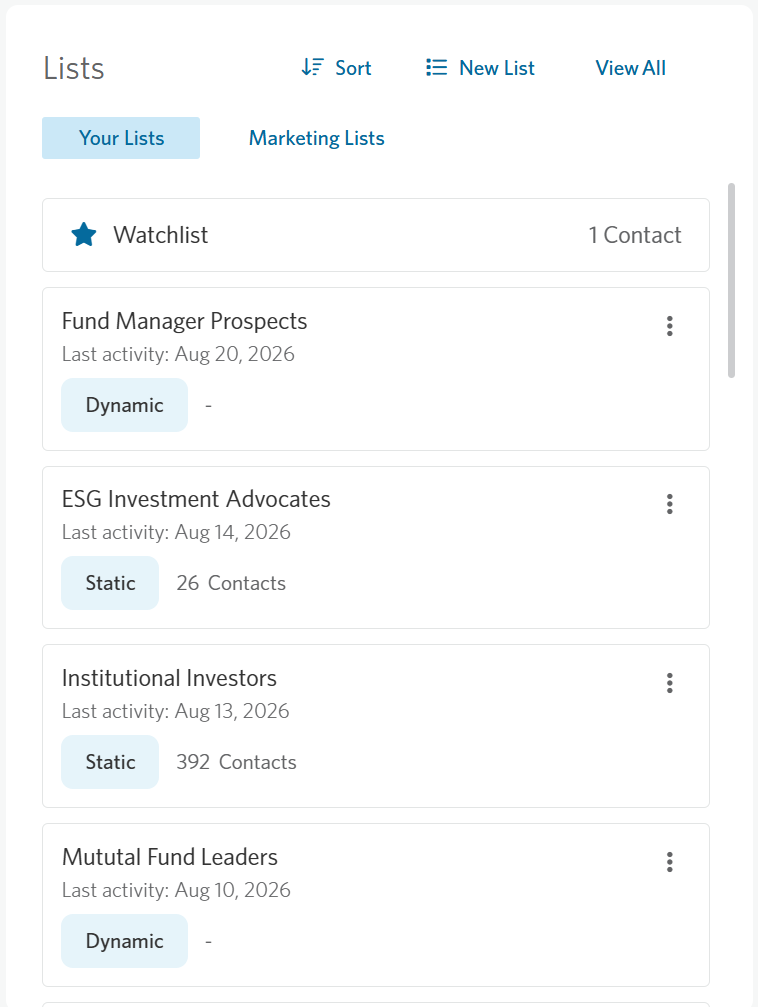
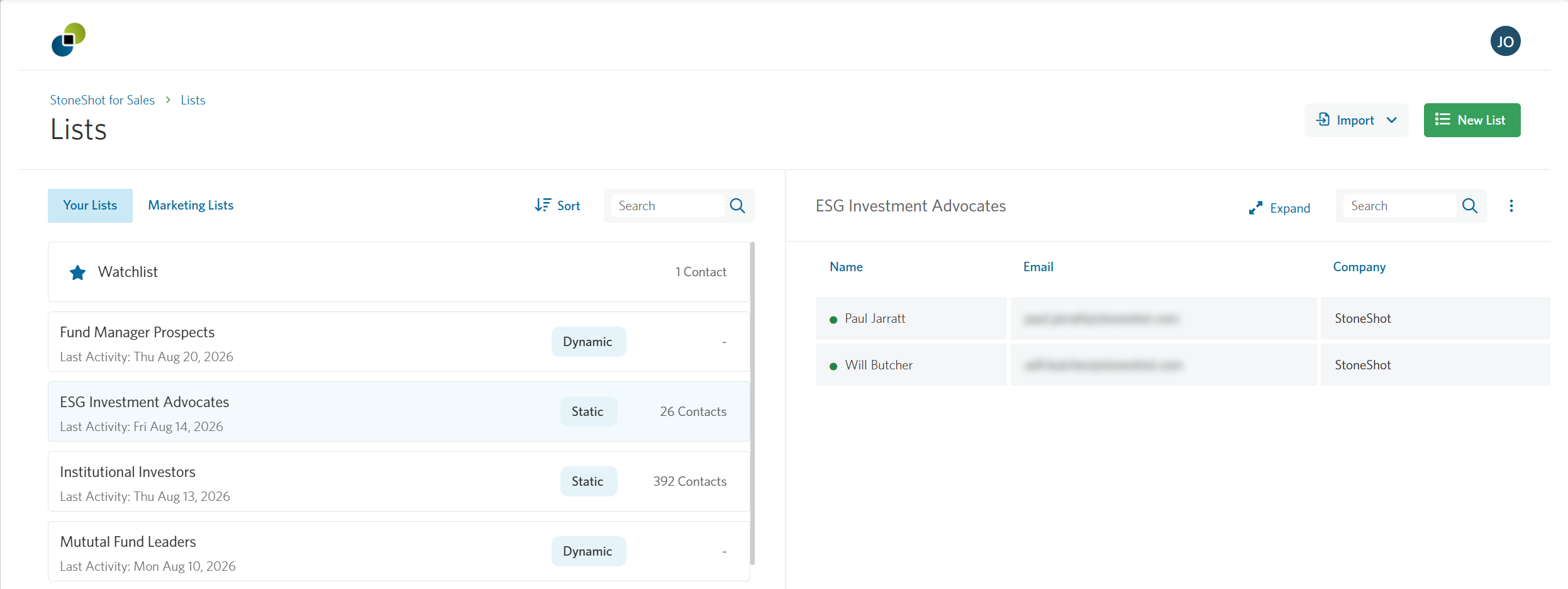
From your dashboard, select View All to see every list you have access to, split into Your Lists and Marketing Lists tabs. At the top of Your Lists is your Watchlist, which is a static list that helps you keep track of key relationships. Add contacts to your personal Watchlist to monitor engagement from prospects, clients, or other important accounts.
On the left, use search and sort to quickly find the list you’re looking for, and select a list to view the contacts within it. You’ll only be able to view contacts assigned to you.
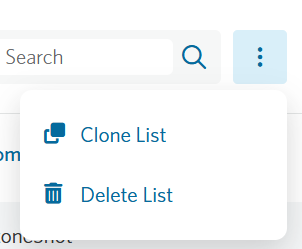
Additionally, you can clone or delete the list via the three dots menu on the right.
Viewing an Individual List
To view an individual list, select Expand. Opening a list shows you key metrics for that list, along with the full contact grid. Lists come in two types: static, a fixed set of contacts you choose, and dynamic, a set of contacts that updates automatically based on filters you define.
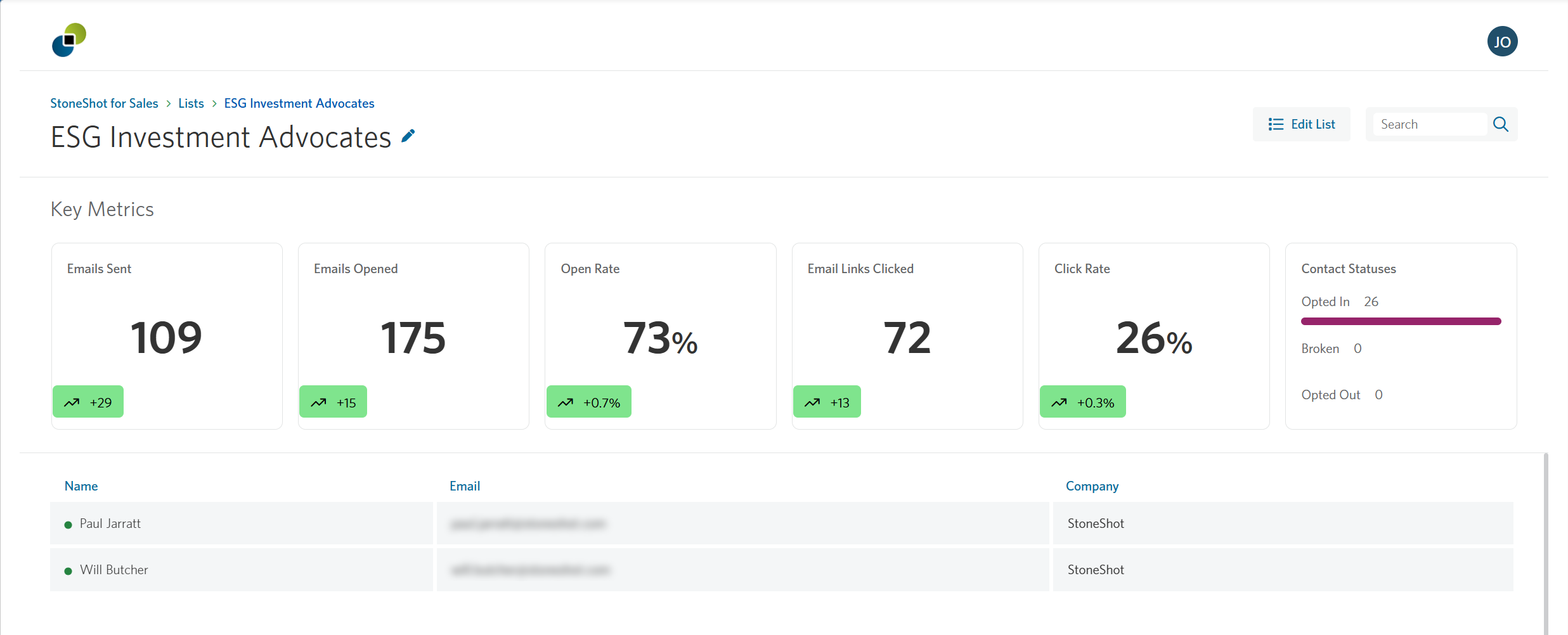
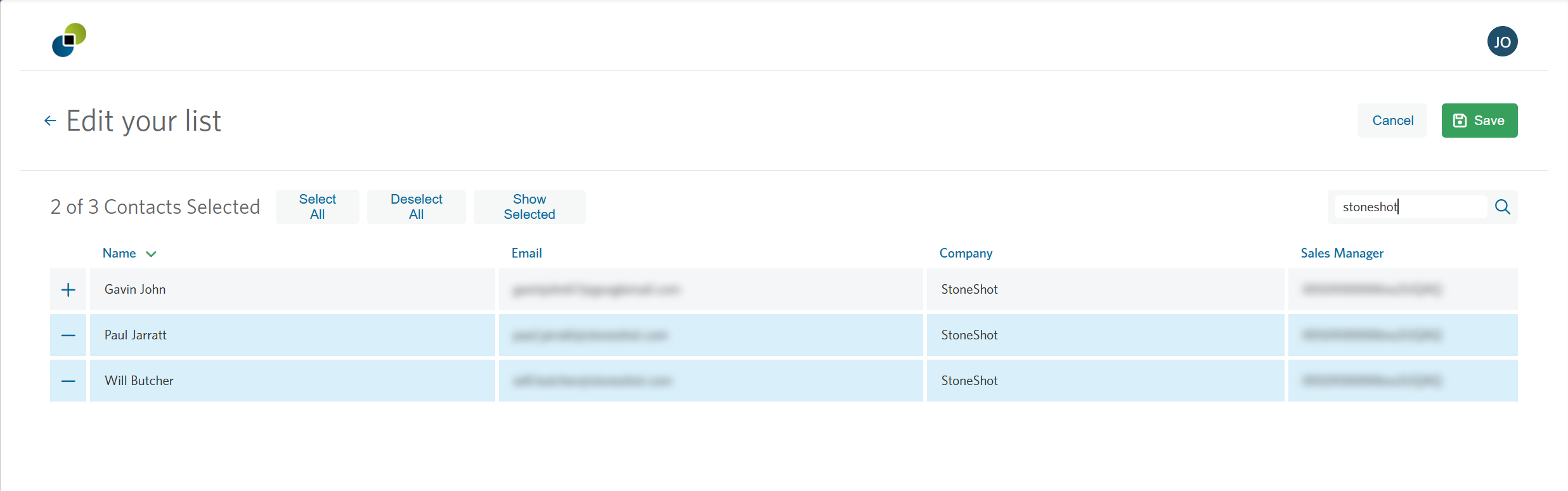
You can edit your lists directly within StoneShot for Sales. To edit a static list, select Edit List in the top right, then check contacts on or off to add or remove them from the full list of contacts you have access to.
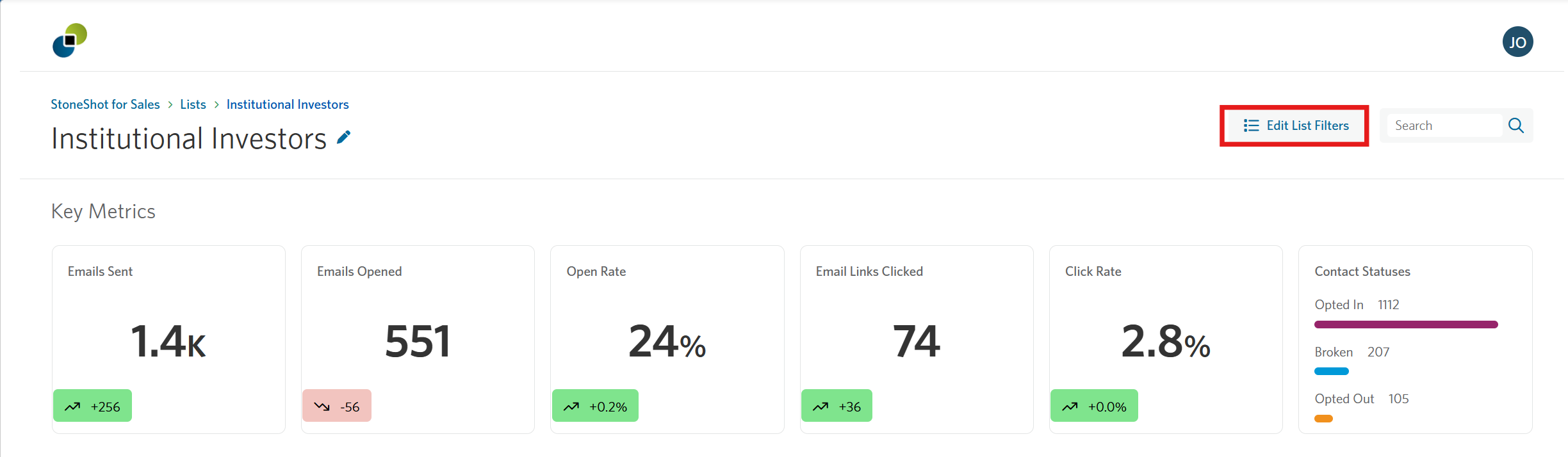
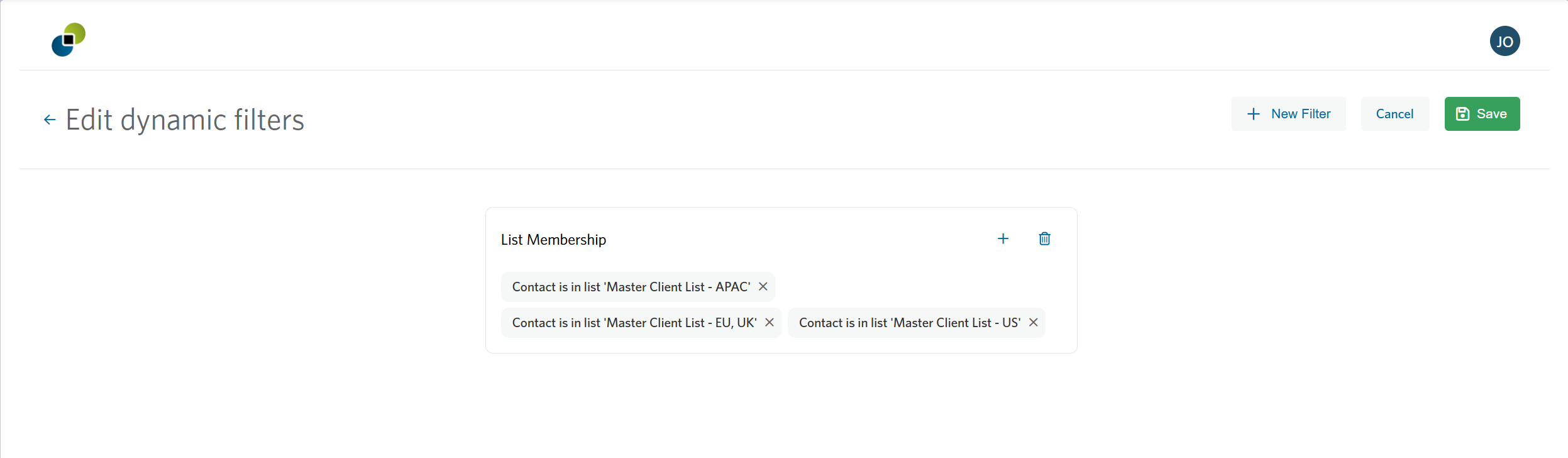
To edit a dynamic list, select Edit List Filters, then adjust your existing filters or add new ones.
Select Save once you’re happy with the changes.
Creating a New List
Select New List from your dashboard to create either a static or dynamic list.
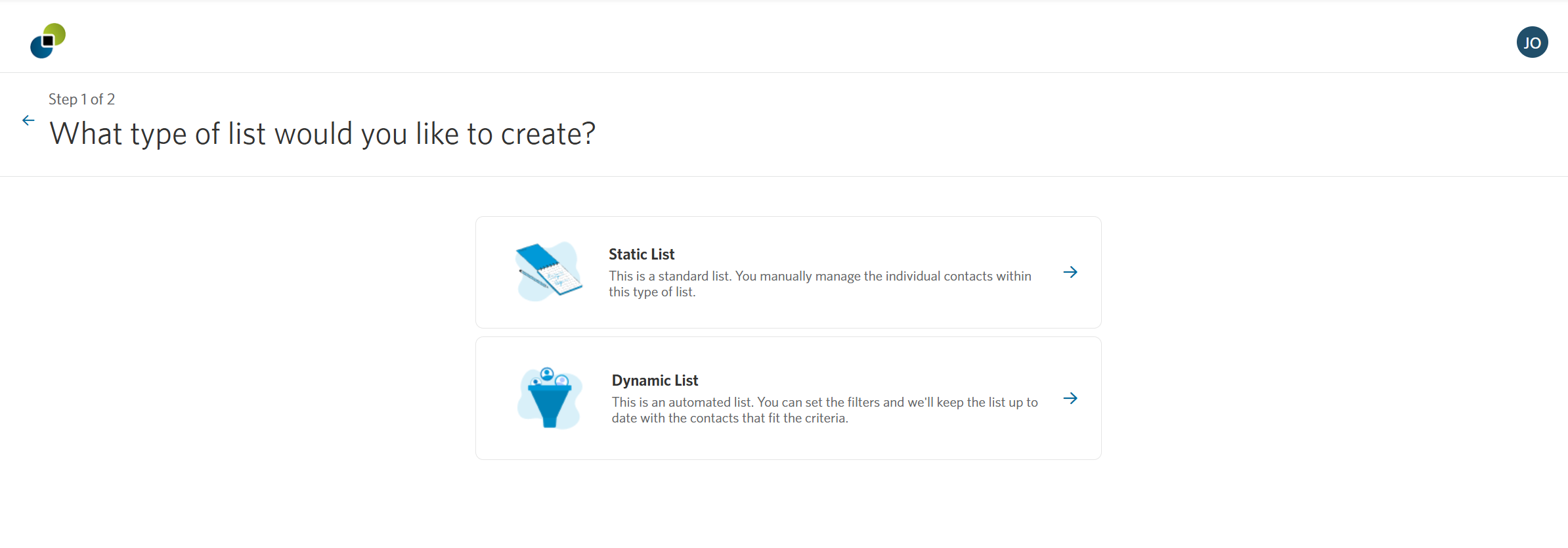
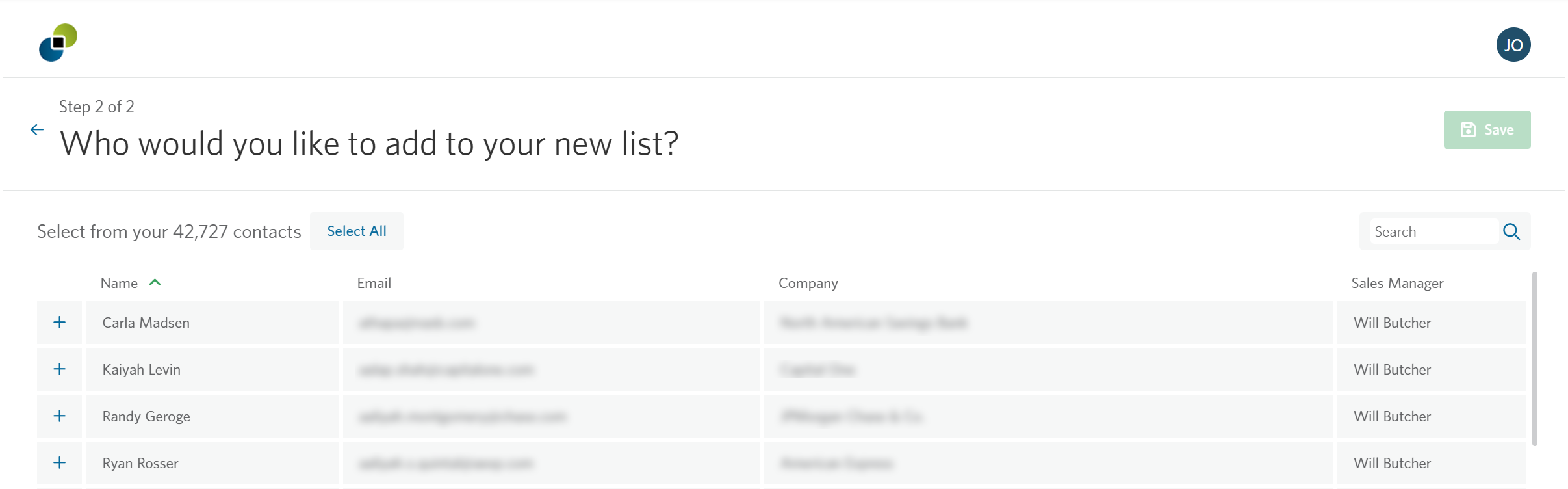
For a static list, search across all contacts you have access to and select the ones you want to add, then hit Save and name your list to finish.
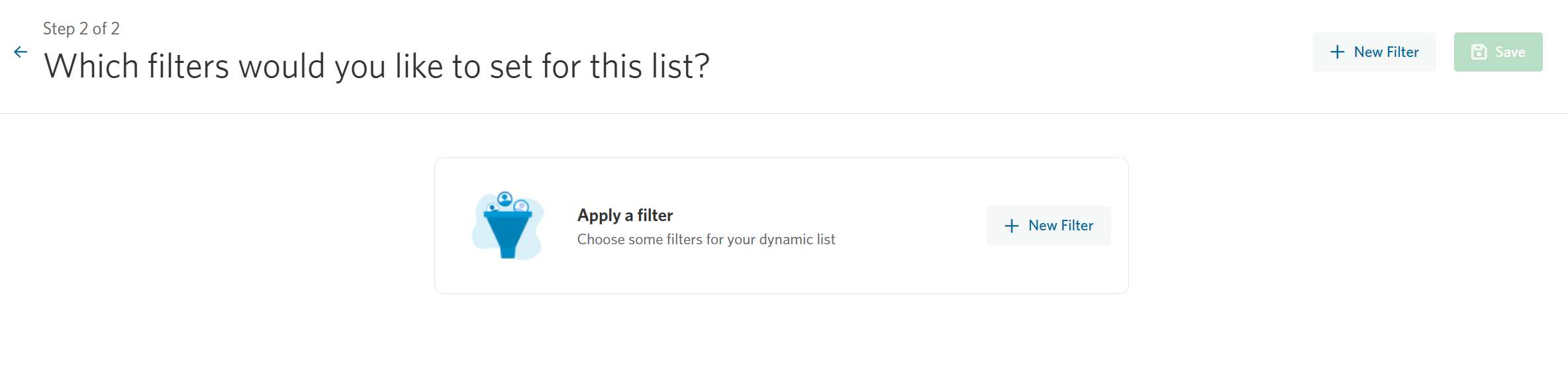
For a dynamic list, build your list using filters that define the criteria contacts must meet to be included. The list is then populated automatically based on those conditions. The list then populates automatically based on those conditions. Select Save to name your list and finish.