









StoneShot Learning > Event Marketing > Suppressing Staff Domains and Contacts
Suppressing Staff Domains and Contacts
Events often include attendees who aren’t part of your target audience, such as internal staff, speakers, or event agency partners. This feature lets you exclude these contacts from an event’s registration and capacity metrics, while still tracking their attendance separately.
Managing Default Staff Domains and Contacts
Before you can suppress staff within an event, it’s worth setting up your defaults so every new event starts off with the right contacts already flagged.
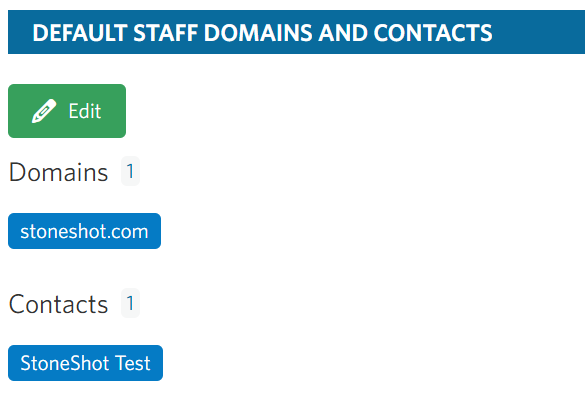
Head to Options > Advanced tab, and scroll down to Default Staff Domains and Contacts.
Note: Only Admin-level users are able to navigate to the Advanced tab.
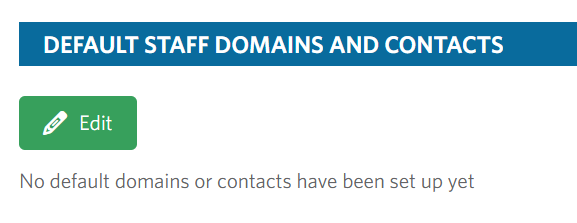
Click Edit to set up your own domains or contacts.
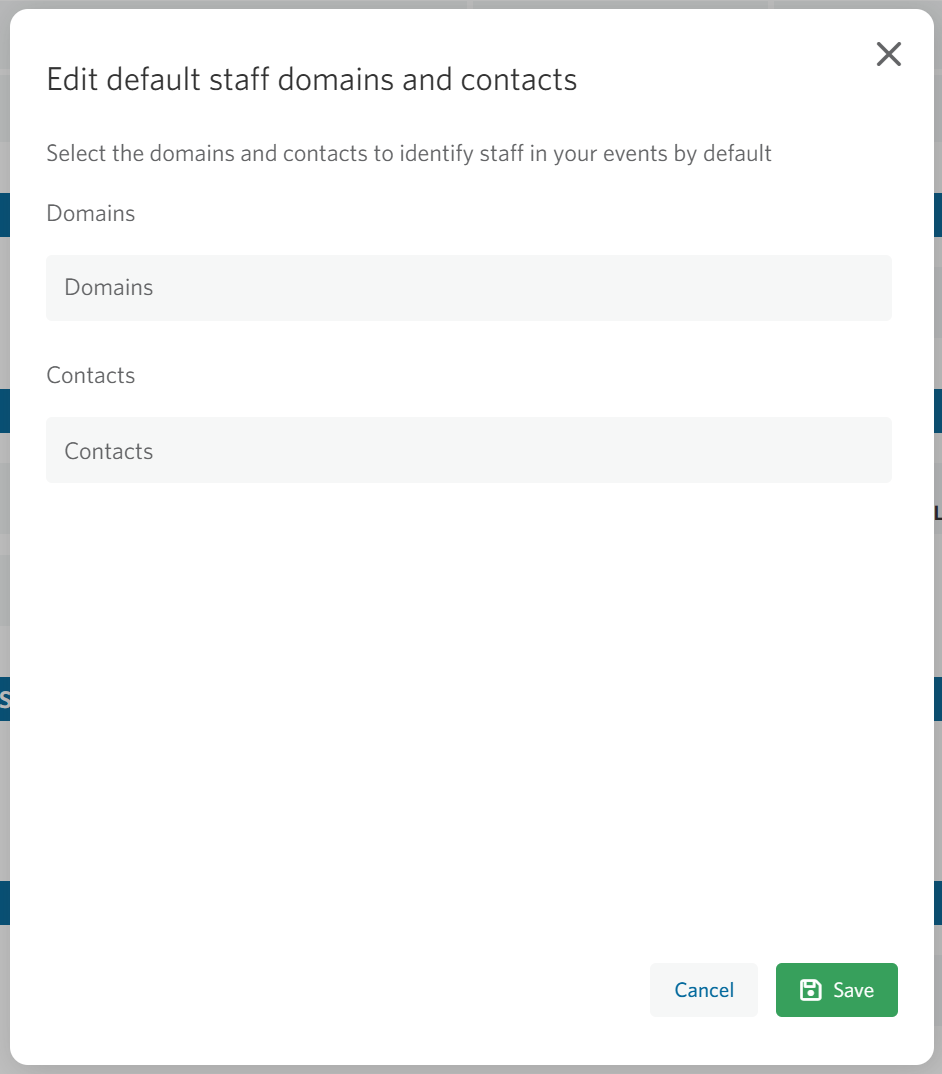
Here you can add:
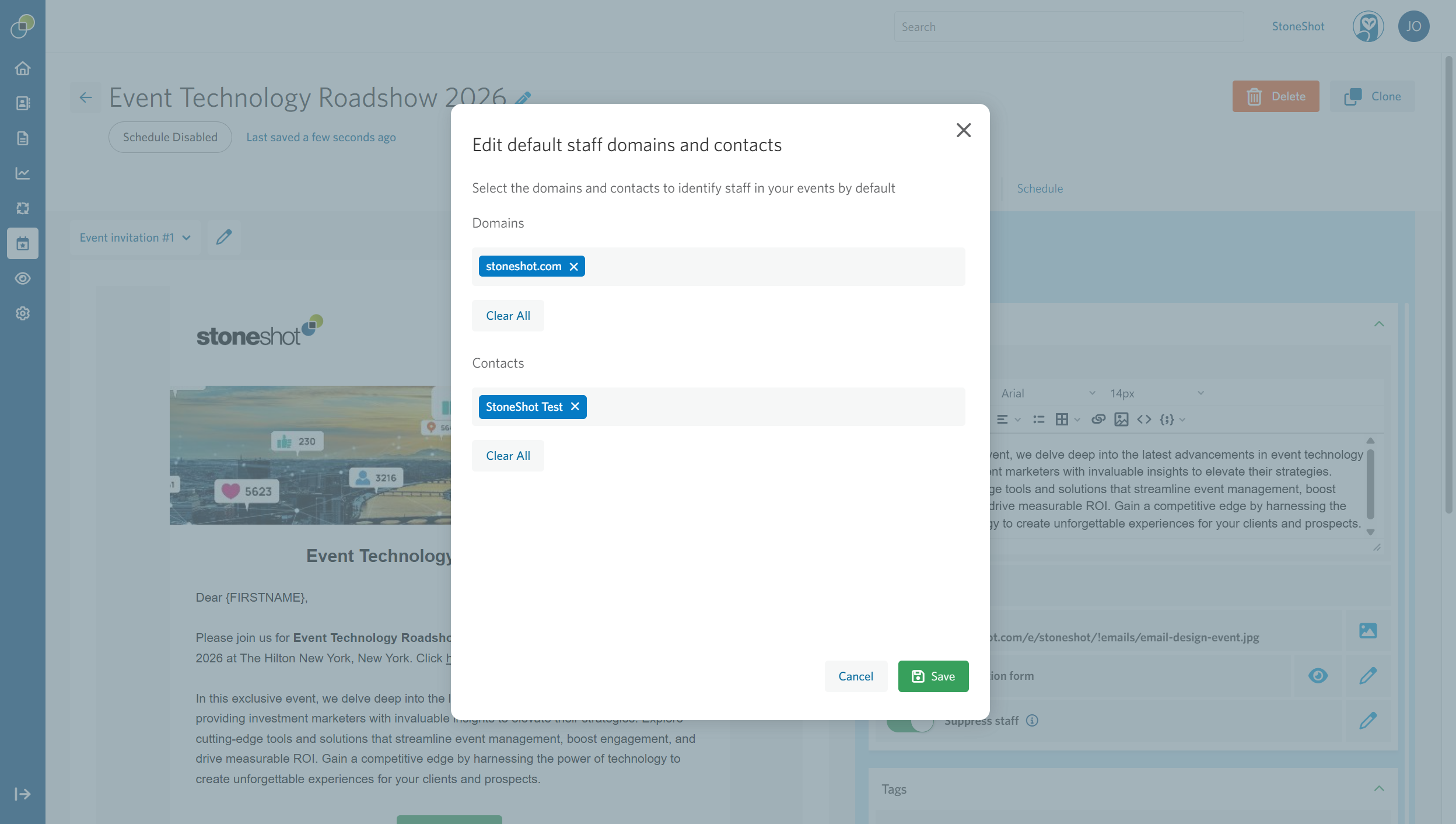
- Domains — any contact with a matching email domain (e.g. stoneshot.com) will be treated as staff by default. When entering a domain, make sure it doesn’t include the @ symbol and ends correctly (e.g. .com, .co.uk).

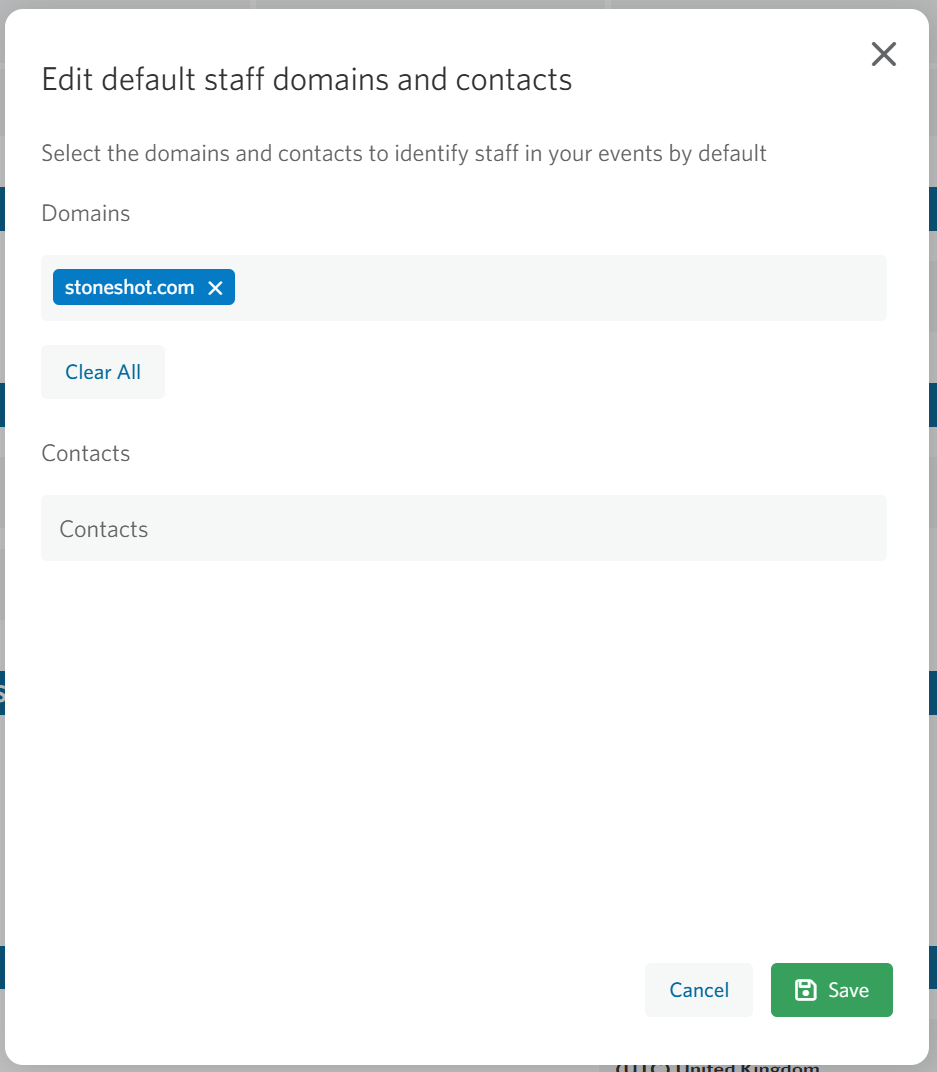
- Contacts — individual contacts you want flagged as staff, regardless of domain. Once selected, the contact’s first and last name will display, or their email if a name isn’t available.

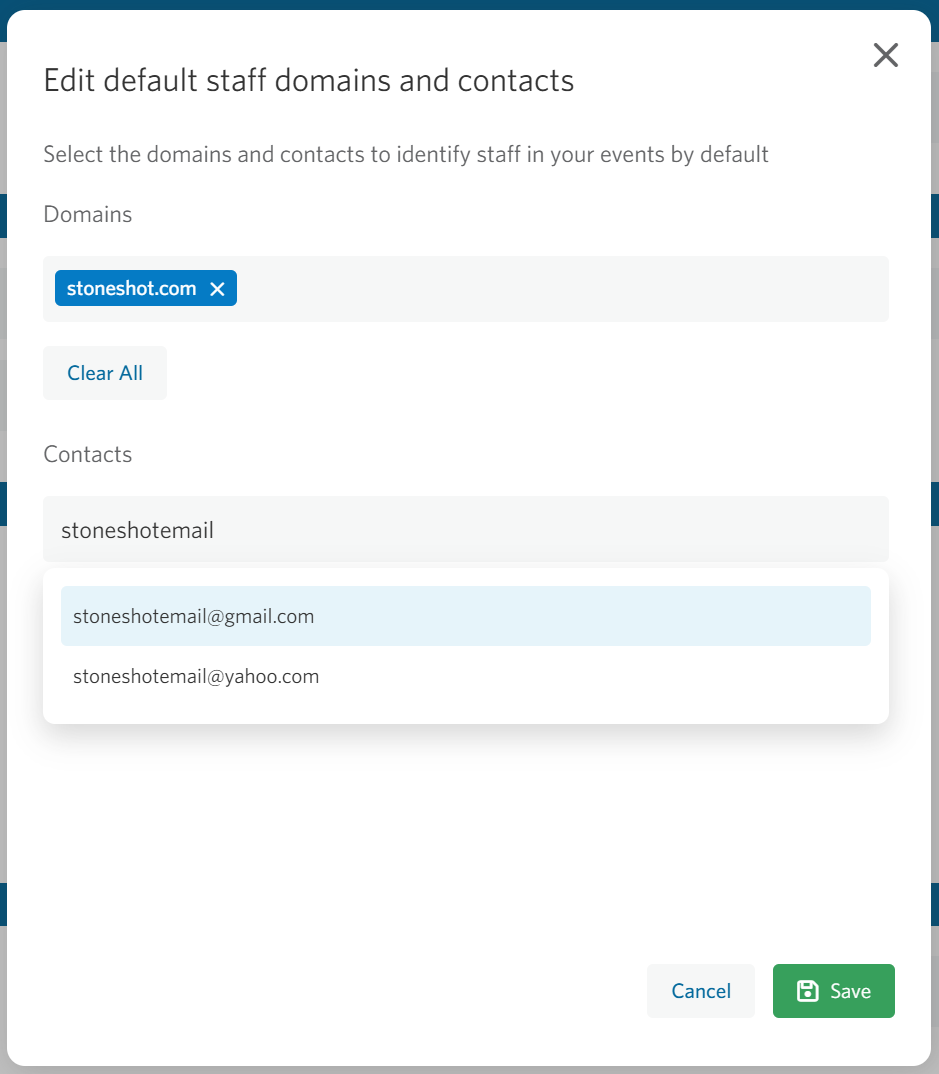
Once you hit Save, these defaults will automatically carry into every new event you create. You can always come back and update them. Changes here won’t retroactively affect events that have already had their suppressions edited individually.
Suppressing Staff Within an Event
Within an individual event, head to the Summary panel and you’ll see a Suppress staff toggle.
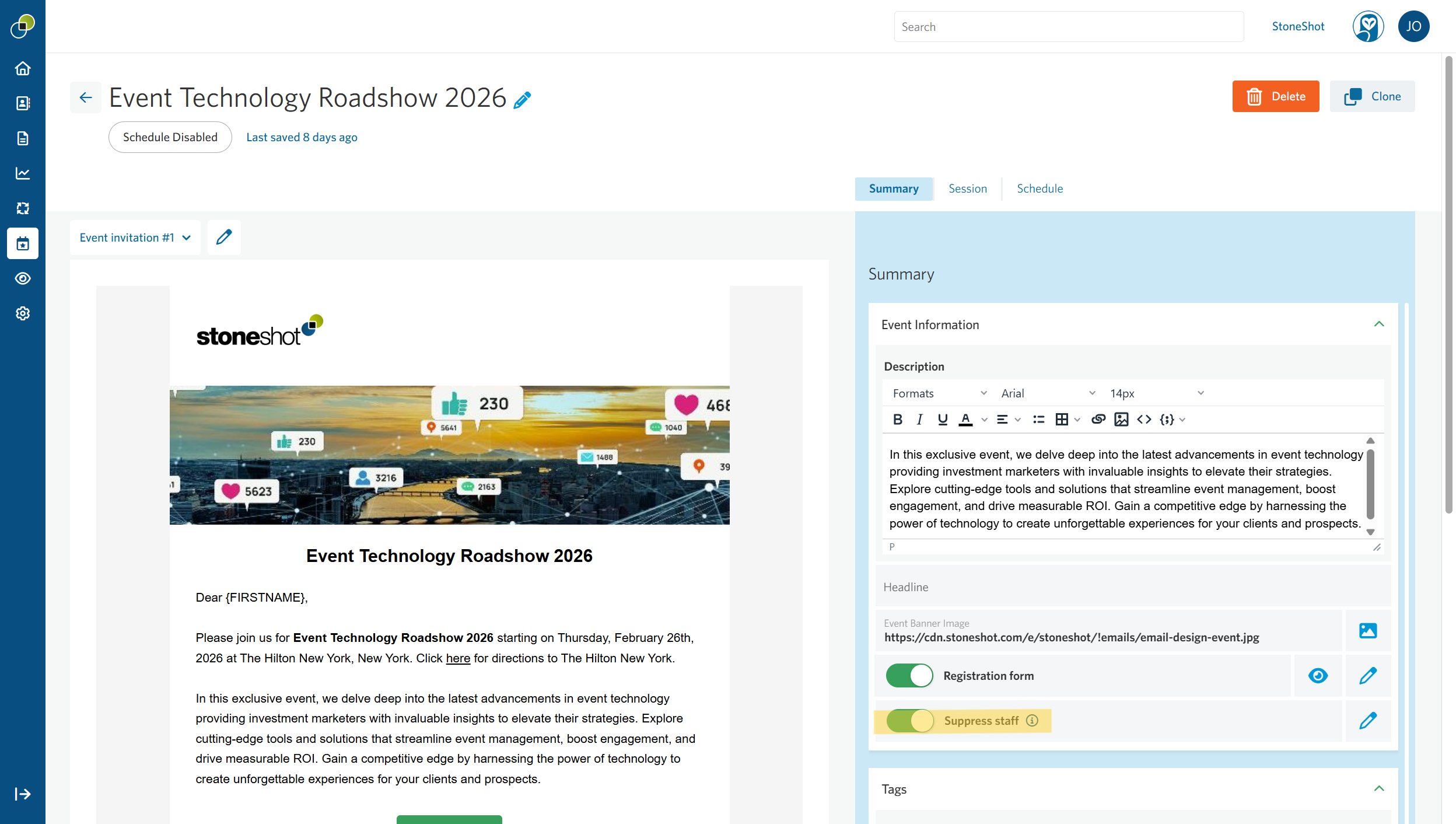
A few things to note:
- When this feature is enabled, it applies at an event level, not per session
- If a global default has been set up in Advanced, the toggle will be on by default for new events
- If no global default has been set up, the toggle will be off by default for new events
Editing Suppressions Per Event
The domains and contacts set in Advanced act as your defaults, but you’re not locked into them. Within any event, you can add or remove suppressed domains and contacts to suit that specific audience.
To do so, click the Pencil icon to open a modal where you can edit the configuration for that individual event.
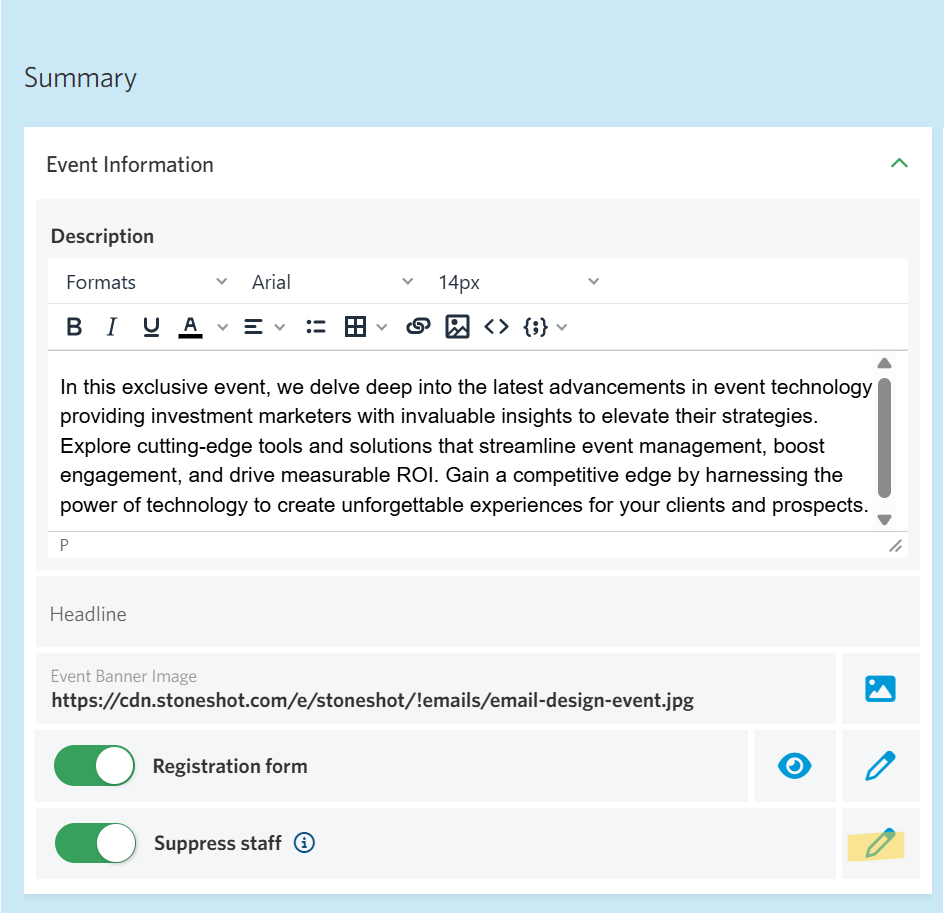
Changes made at the event level are local. Editing the list within an event won’t change your Admin-level defaults, and vice versa.
How Suppression Affects Metrics
Once staff suppression is active, suppressed contacts are removed from an event’s headline metrics — Invited, Registered, Confirmed, Cancelled, and so on.
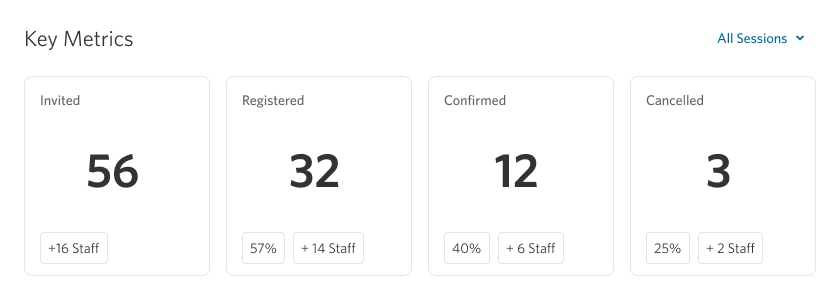
They’re not hidden entirely, though. Each metric shows a “+X Staff” indicator alongside it, so you can still see staff engagement at a glance without it skewing your core numbers.
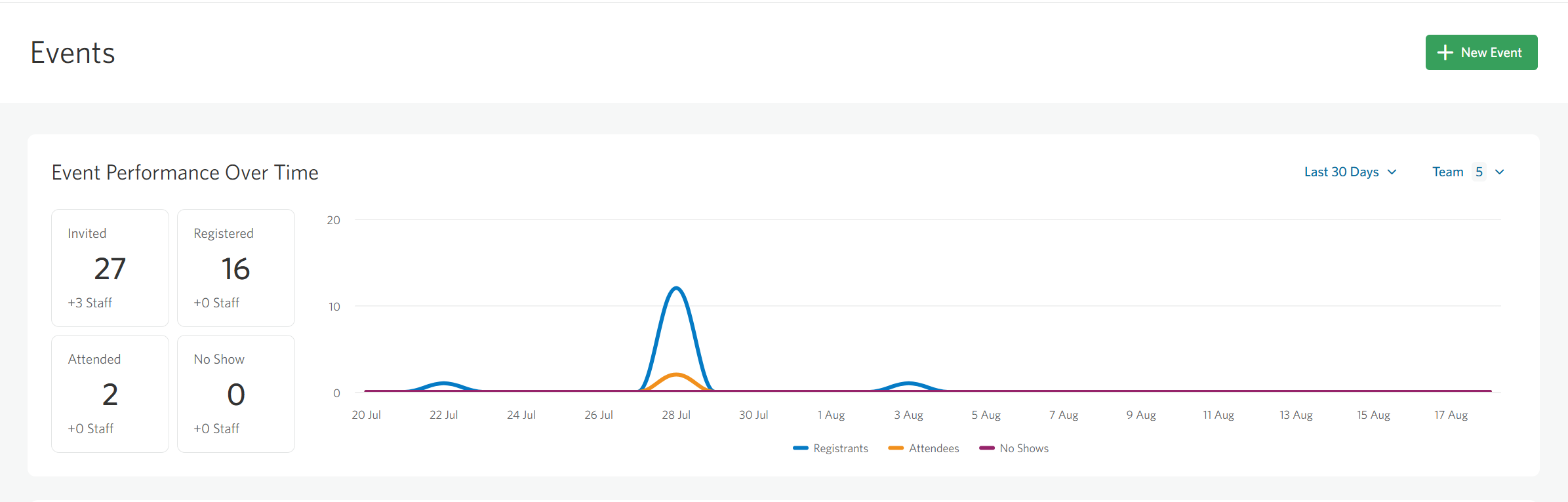
This also applies to your Event Summary page. In the Event Performance Over Time modal, you’ll see the same breakdown of metrics including the “+X Staff” indicator.
Managing Staff on the Contacts Table
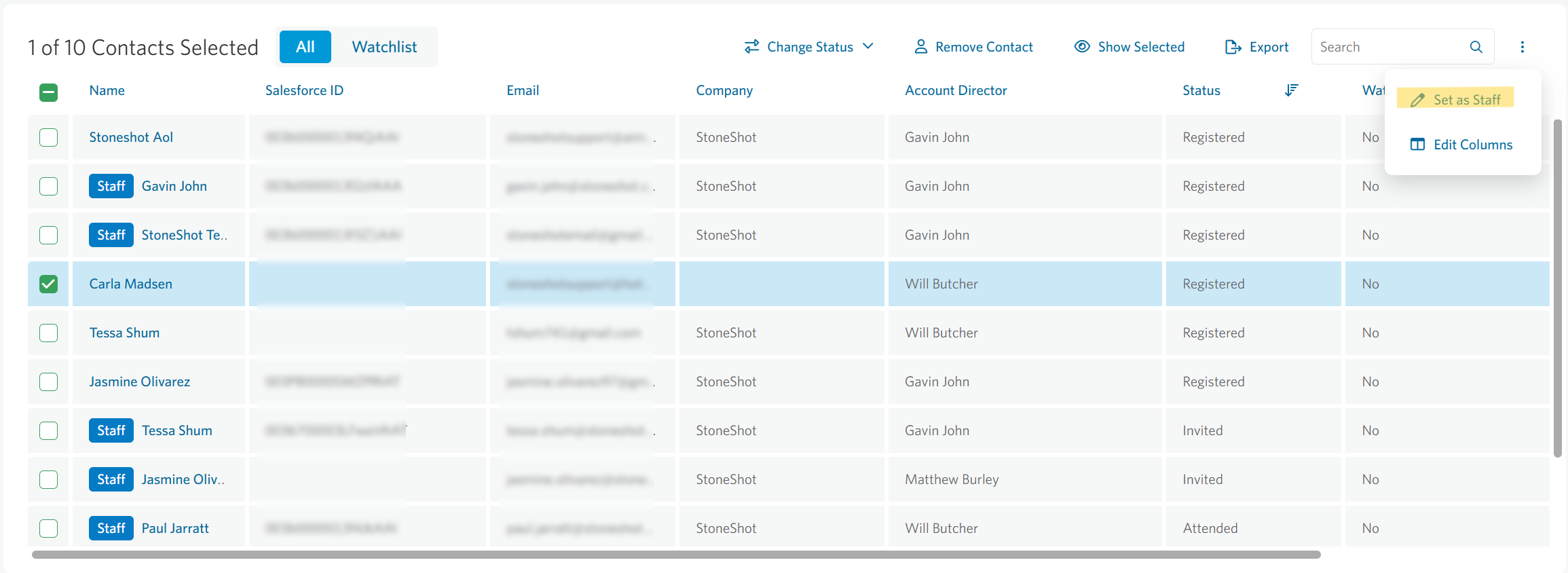
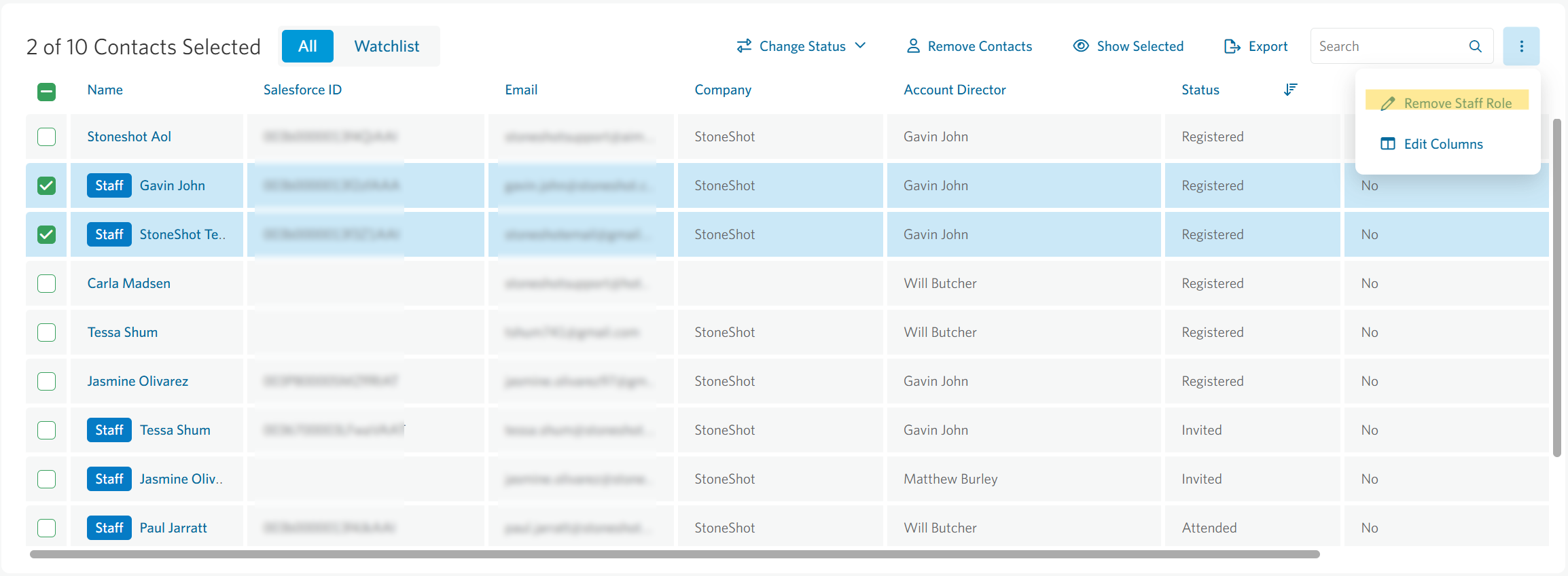
On the event’s Contacts grid, any contact identified as staff appears with a Staff chip next to their name.
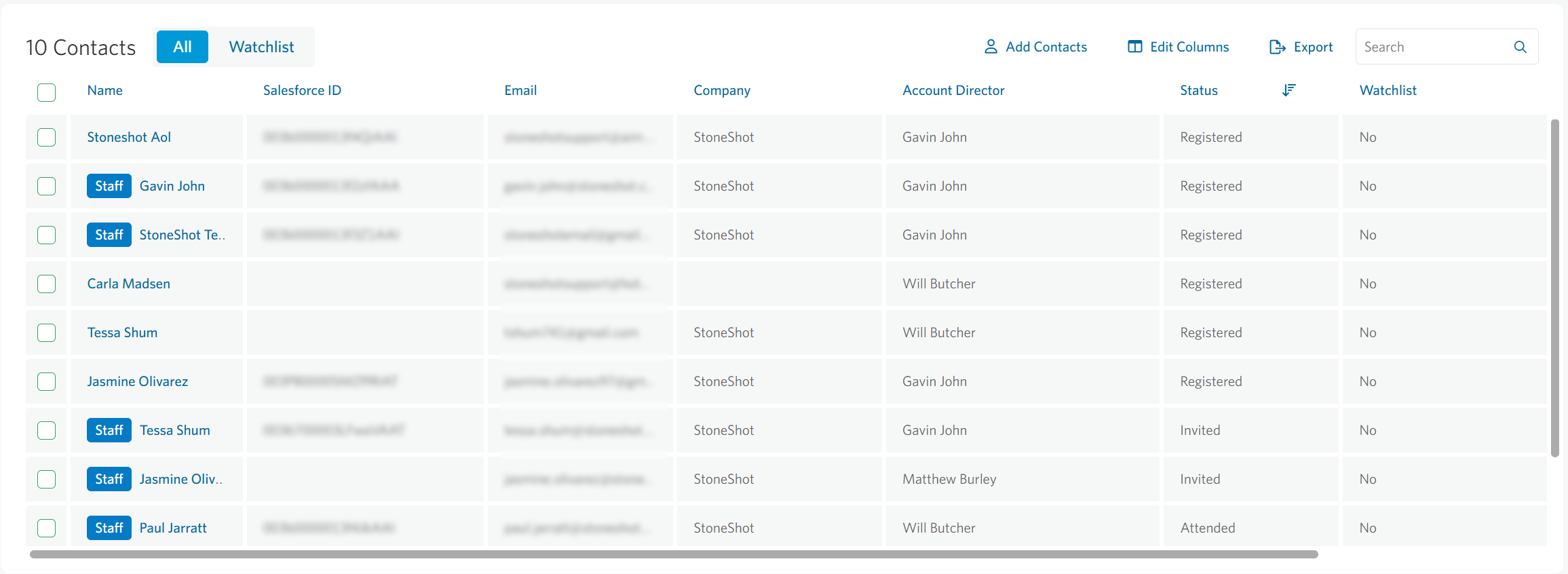
Note: The Staff label is not included when contacts are exported to Excel.
You can override a contact’s staff status directly from this grid at any time. This is handy if someone’s domain matches your defaults but they should actually be counted as a regular attendee for this event, or vice versa
To mark a contact as staff: select a non-staff contact and use the three-dot menu at the top right of the Contacts table.
To remove a contact’s staff label: select a staff contact and use the same three-dot menu.
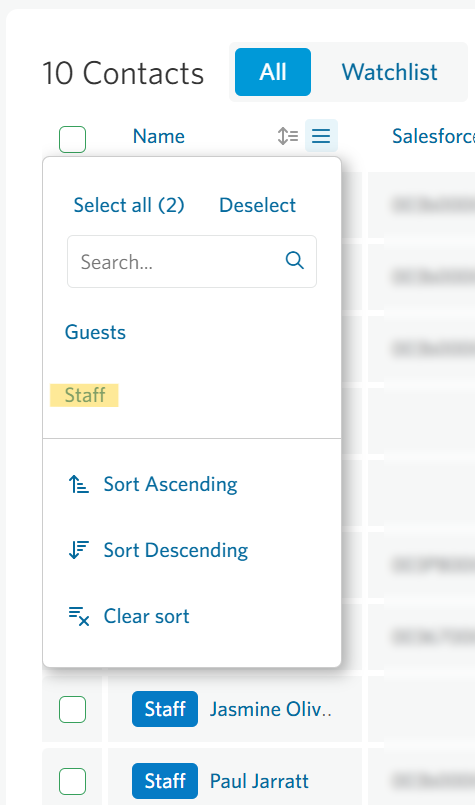
To filter by staff: click the filter icon within the Name column and select the Staff option. This will isolate the staff contacts in the table for easy viewing.
Cloning Events
When you clone an event, its staff suppressions, both domains and contacts, carry over from the original event. Your Admin-level defaults are ignored in this case, since the cloned event already has its own suppression settings in place.