










StoneShot Learning > Integrations > StoneShot for Sales – Sending Emails
StoneShot for Sales – Sending Emails
StoneShot for Sales makes it easy to send fully tracked, on-brand emails to your contacts, whether you’re sending on your own behalf or for a colleague.
Choosing your Recipients
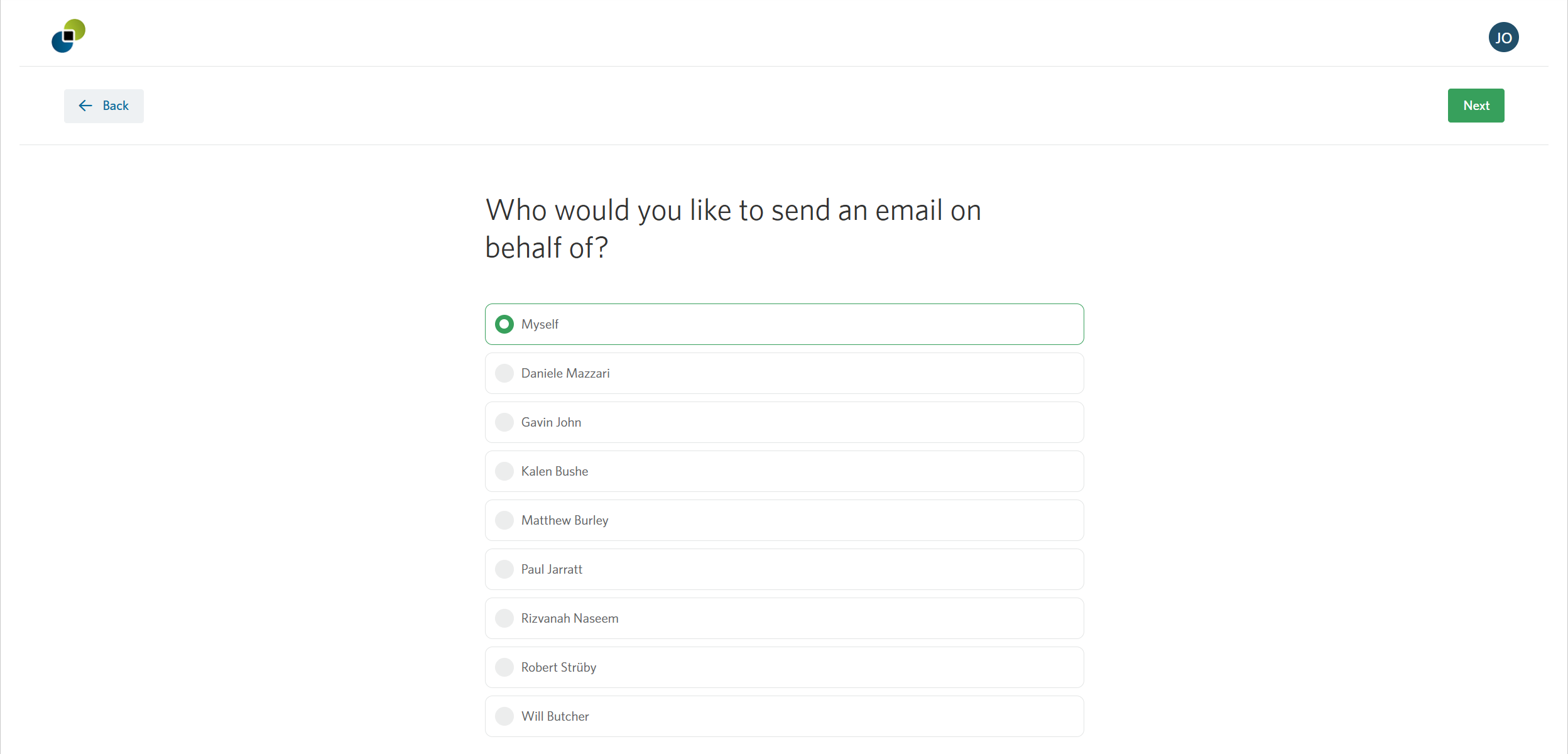
At the top of the dashboard, select New Email to begin. You’ll first choose who you’re sending on behalf of: yourself, or another sales user on your team.
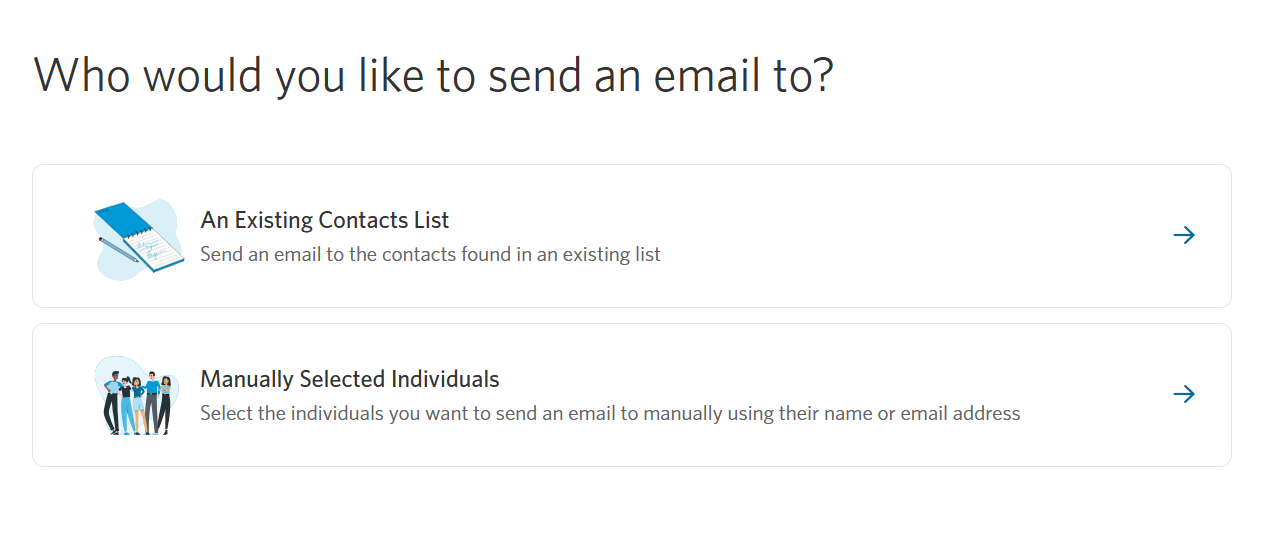
Next, select whether you’d like to send the email to an existing contact list or select recipients manually.
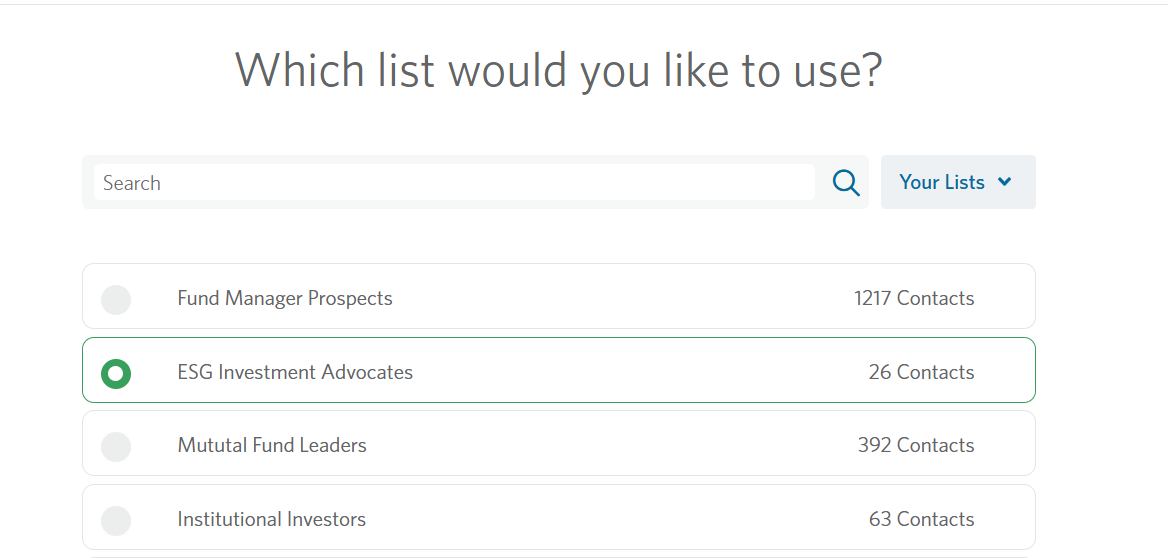
If you choose to send to a list, you can search for a specific list, select from lists you’ve created or from lists your Marketing team has built.
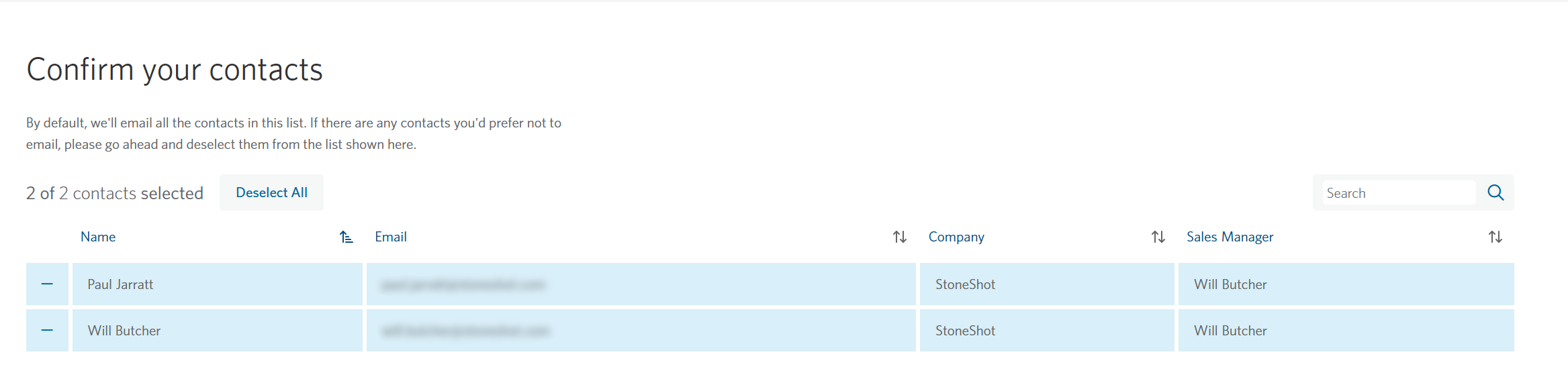
One thing to note is you’ll only be able to send to your own clients within that list, even if the list contains other contacts. All your clients on the list are selected by default, but you can remove any you don’t want to include.
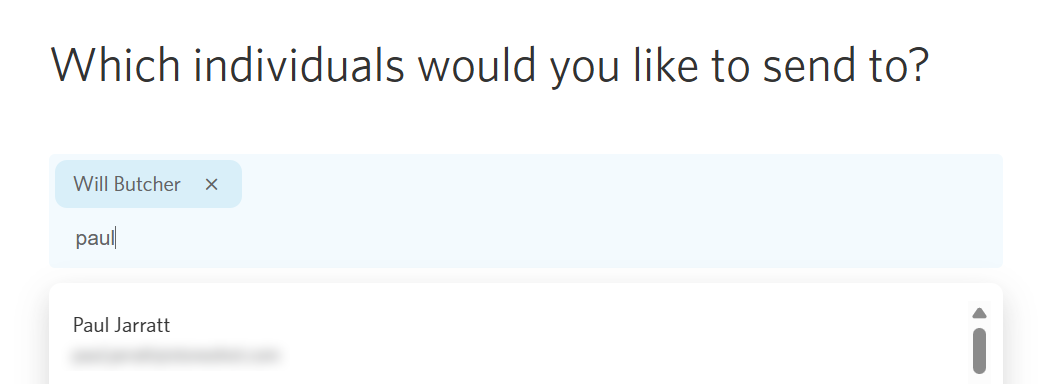
If you’d rather send to specific people, search for and select individual contacts to build a custom recipient list for the mailing. You can only search for contacts assigned to yourself or the person you selected to send on behalf of.
Creating your Email
Once your recipients are confirmed, choose a template from the on-brand, fully tracked options assigned to your team, then personalize your email using the editor to add text, images, and links.
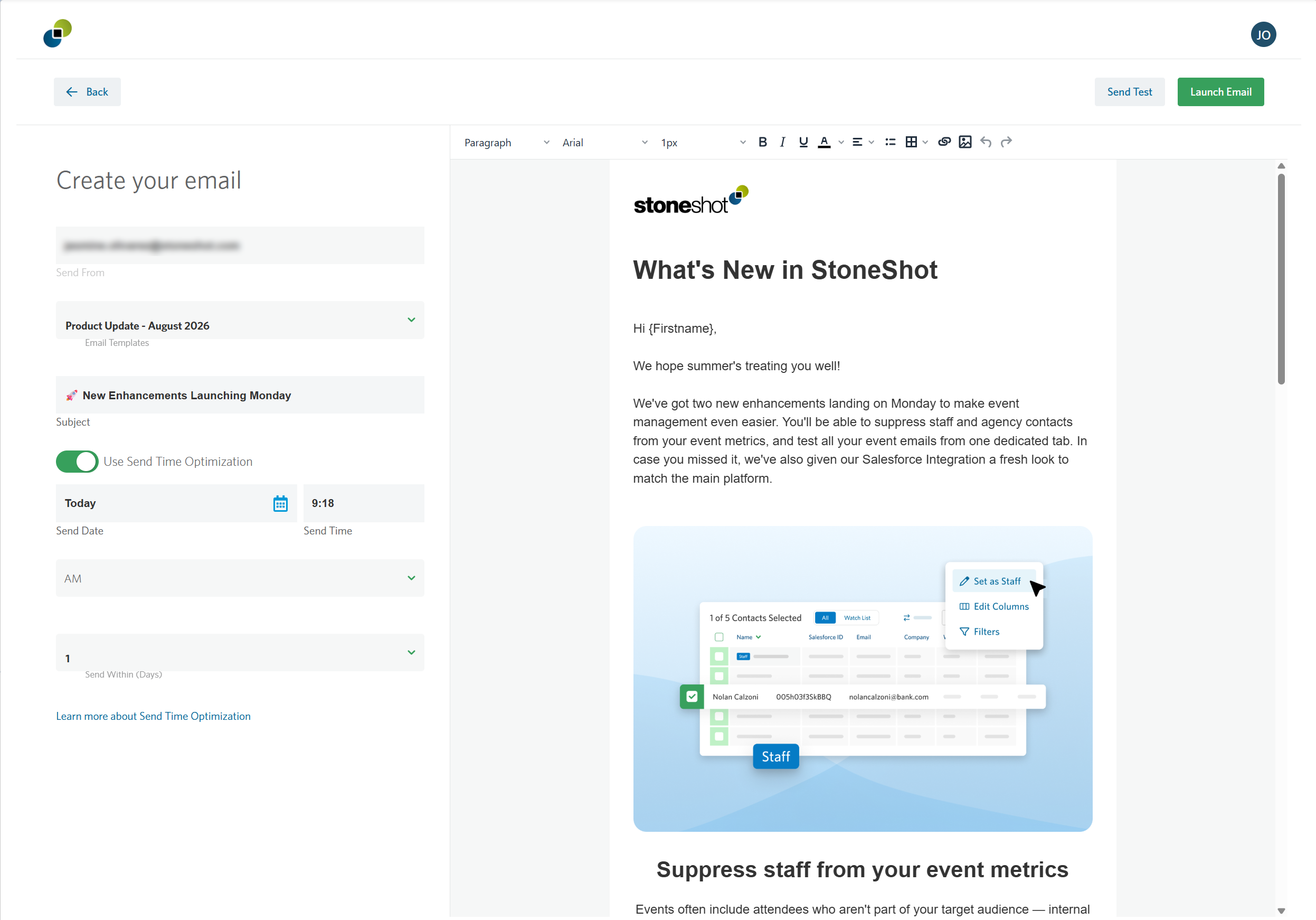
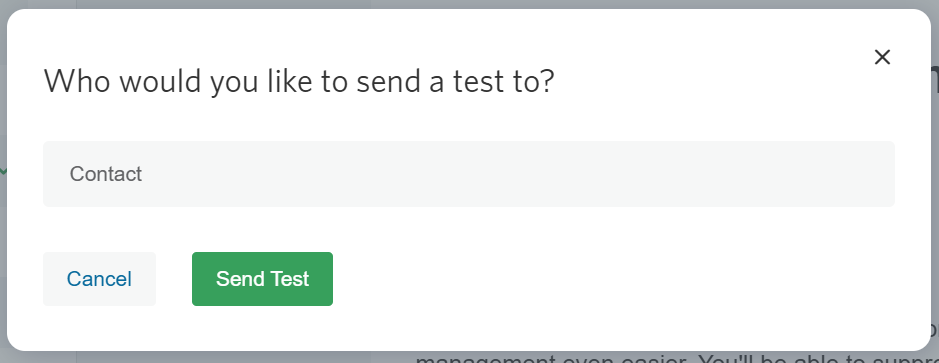
Edit your subject line and set a send date and time or use Send Time Optimization. Before launching, send a test email to any contact on the test list, the same one used throughout the main StoneShot platform.
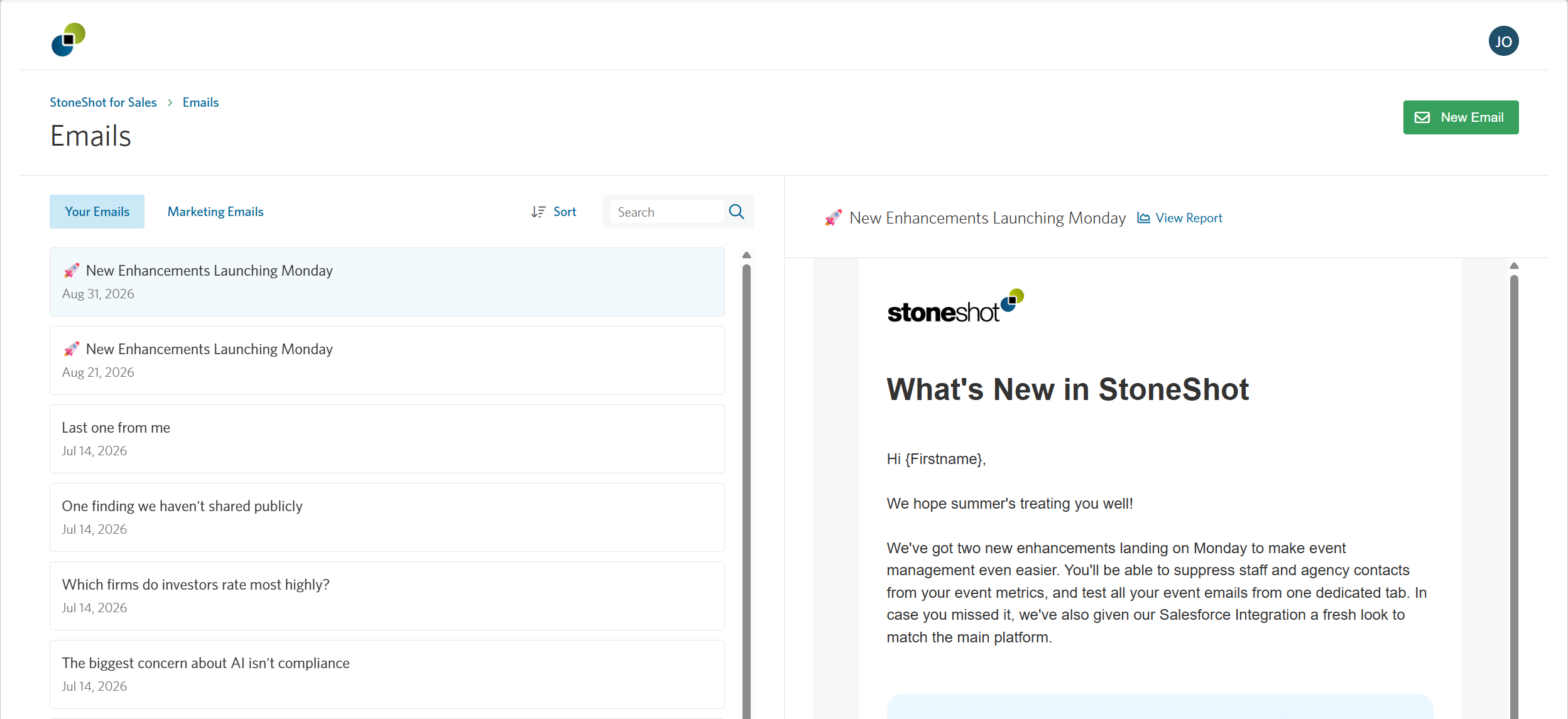
Once you launch your email, you’ll be taken to the Emails page, where you can view the email you just sent, as well as its campaign report.
Sending on Behalf of a Colleague
If you’re sending for another sales user, select who you’re sending on behalf of and you’ll get access to their clients for the mailing. The rest of the process works the same way, except the sender name and email are set to the colleague you selected.