










StoneShot Learning > Teams and Tags > Tags
Tags
Tags allow you to organise your emails, lists, campaigns and events. By assigning different tags to your assets, you’re able to clearly determine who is interested in what.
For example, if one of your contacts has only engaged in 20% of your emails, but they’ve engaged with 100% of your emails with a certain tag, you could send them more deliberately targeted emails containing that specific tagged information.
The ability to identify which clients are hot and which are cold on a certain product will reduce your time and decrease your bounce rates whilst improving your engagement with contacts who are ready to interact.
On a more basic level, tagging is a great way to organise your assets. It’s more powerful and versatile than foldering your assets, as you’re able to assign multiple tags to a single asset. Compare that to only being able to put assets into a single folder, and you can already see that your account will be better organised and easy to grab reports on.
If you have Engagement Scoring, tags take on an even bigger significance and enriches your data even further. Have a look at our Engagement Scoring section to find out more.
To learn about how to implement a tagging strategy, please check out our Tagging Strategy article.
Creating a new Tag
Any user can create a Tag. They can be anything you wish, but it’s recommended that you keep them to a minimum so you don’t get overwhelmed and start to need tags for your tags! Try to stick to a few recognisable ones that you can group and identify your emails with.
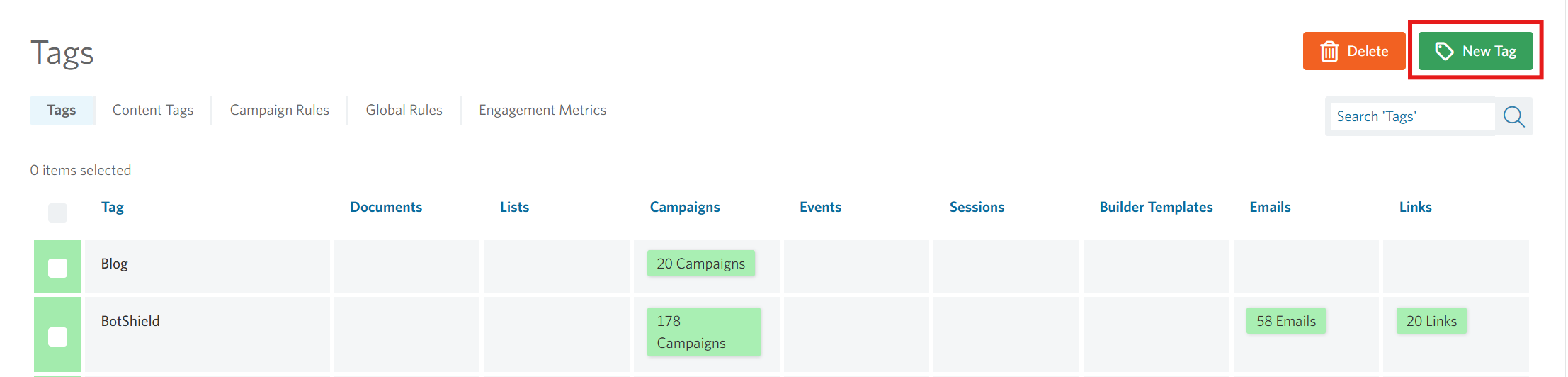
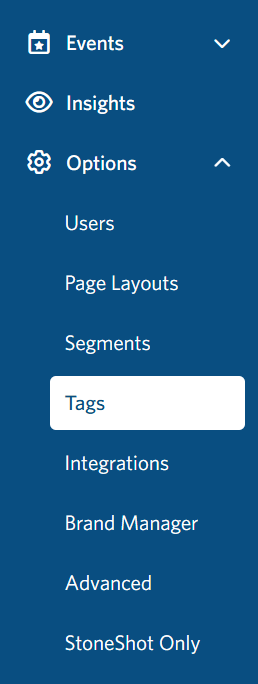
Navigate to Options > Tags and click the green New Tag button in the top-right corner of the page.
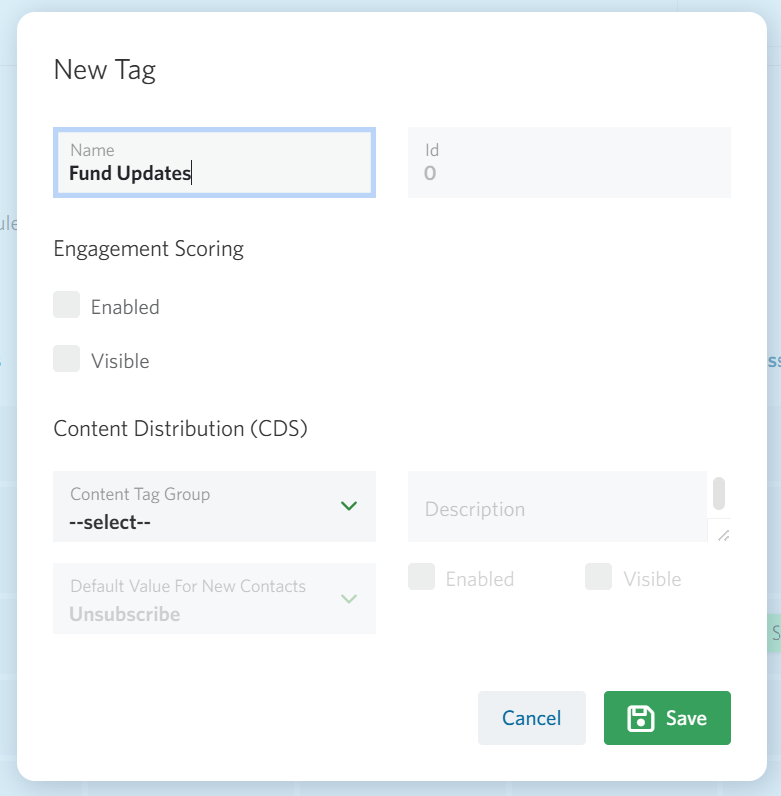
Enter the Name of the Tag and Save.
Tagging an email
If you’re looking to get organised, or start using tags for the first time, it’s easy to tag your emails and campaigns retrospectively. Simply select all of the emails you’d like to assign to a certain tag, press the Tag button, Add and type the Tag you’d like to assign – hit the green Tag button and you’re done! You can only add one tag at a time this way, but you can tag multiple emails.

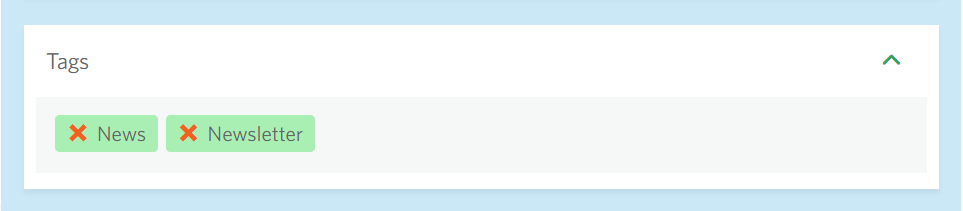
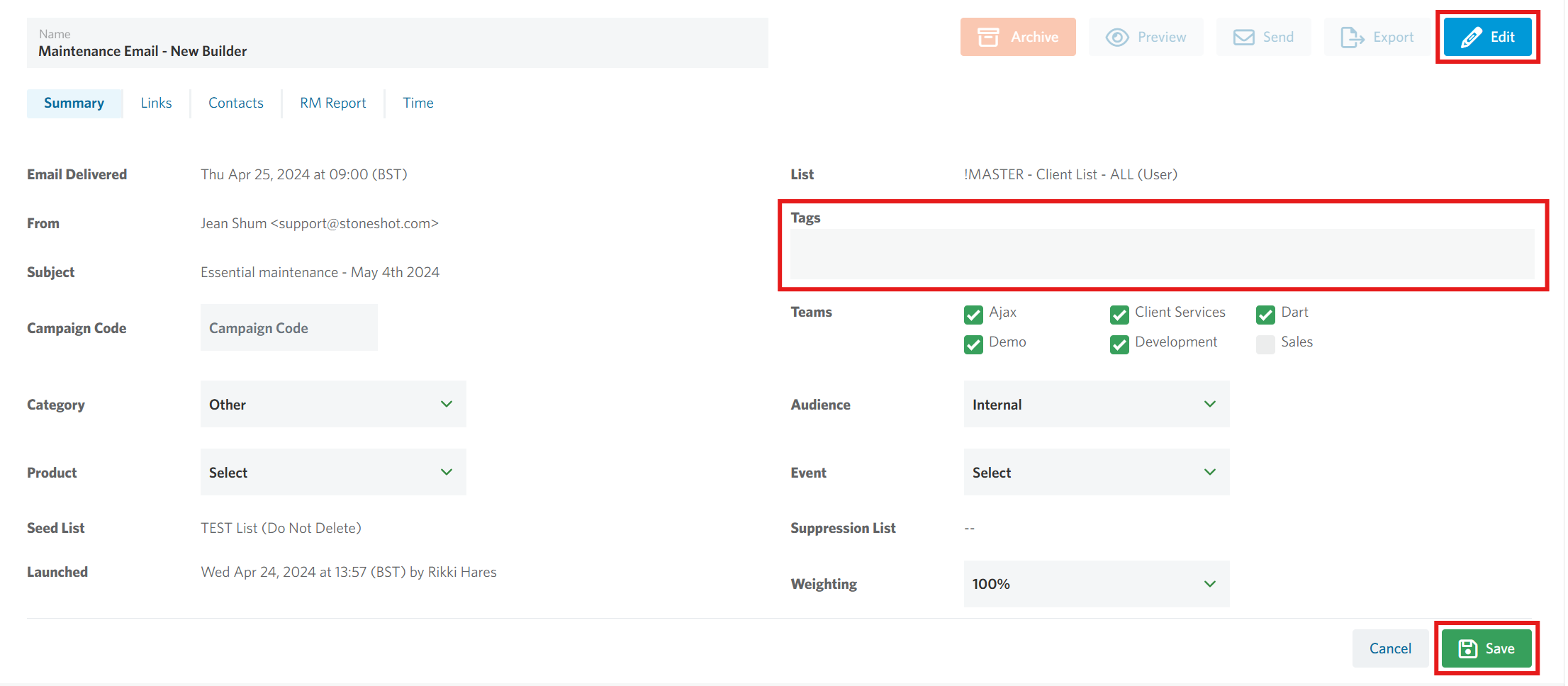
To tag a single email, click into the email as normal and enter them in the Tags box in the Summary tab.
Tagging a list
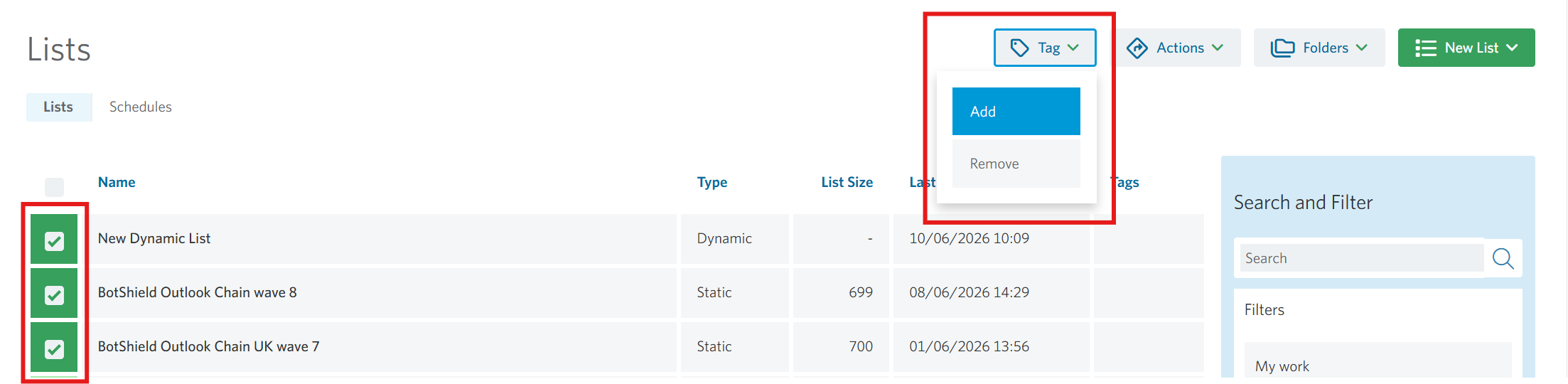
You can tag lists in bulk by ticking the select boxes against each list, clicking on Tag, and entering the tag you want. You can only add one tag at a time this way, but you can tag multiple lists.
To tag a single list, click into the list as normal and enter them in the Tags box.

Tagging a campaign
You can tag campaigns lists in bulk by ticking the select boxes against each campaign, clicking on Tag, and entering the tag you want to do. You can only add one tag at a time this way, but you can tag multiple campaigns.
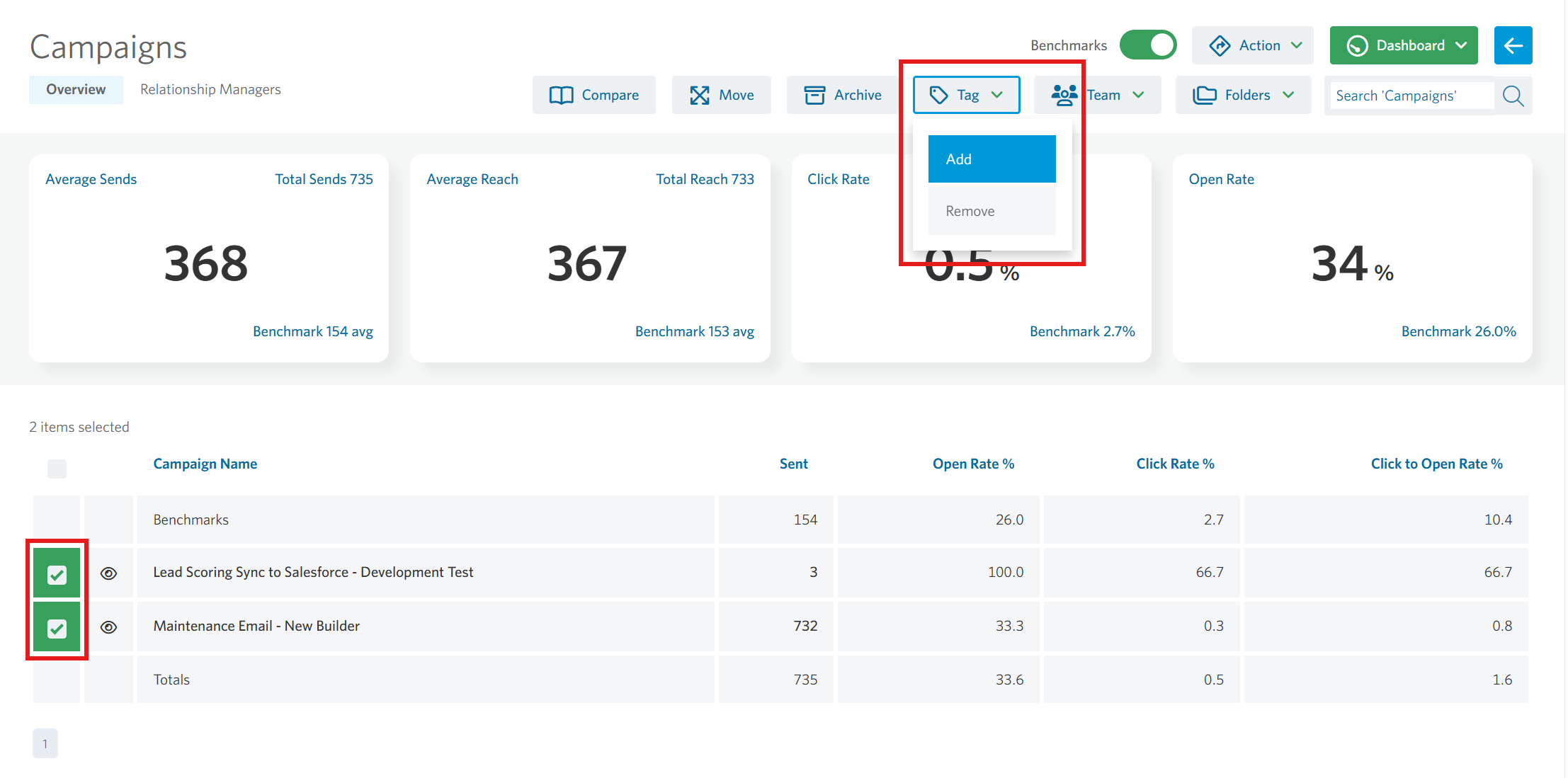
To tag a single campaign, click into the campaign report as normal, click the Edit button and enter them in the Tags box.
Tagging an event
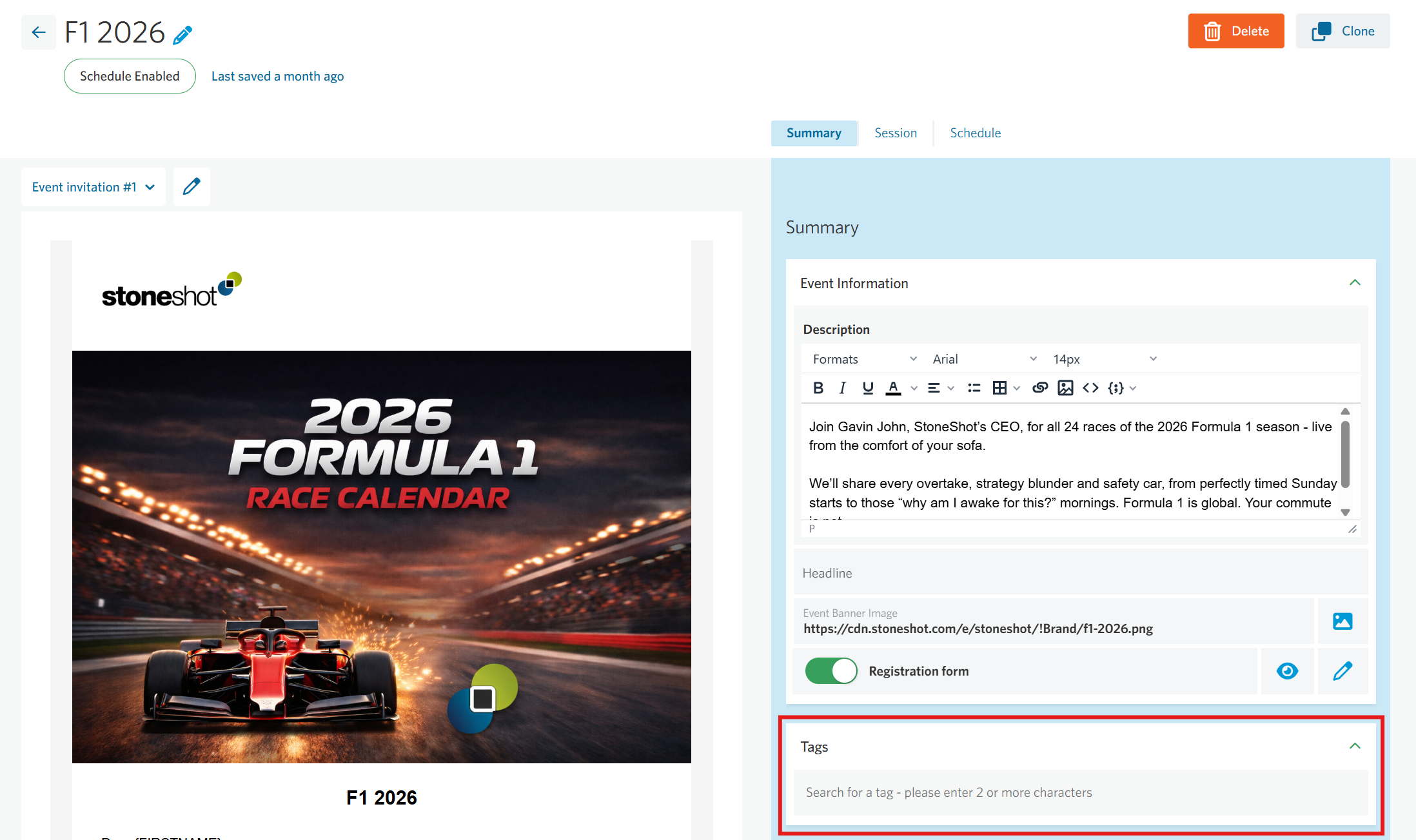
To tag an event, click the edit icon against the event and enter them in the Tags box.
Removing a Tag from assets
To remove tags in bulk, tick the boxes against the names of the Emails, Lists or Campaigns, go to Tag > Remove > tick the one/s you want to remove and Save.
Deleting a Tag
Navigate to Options > Tags, check the box against the Tag and hit the orange Delete button in the top-right corner of the page.
Searching for tagged assets
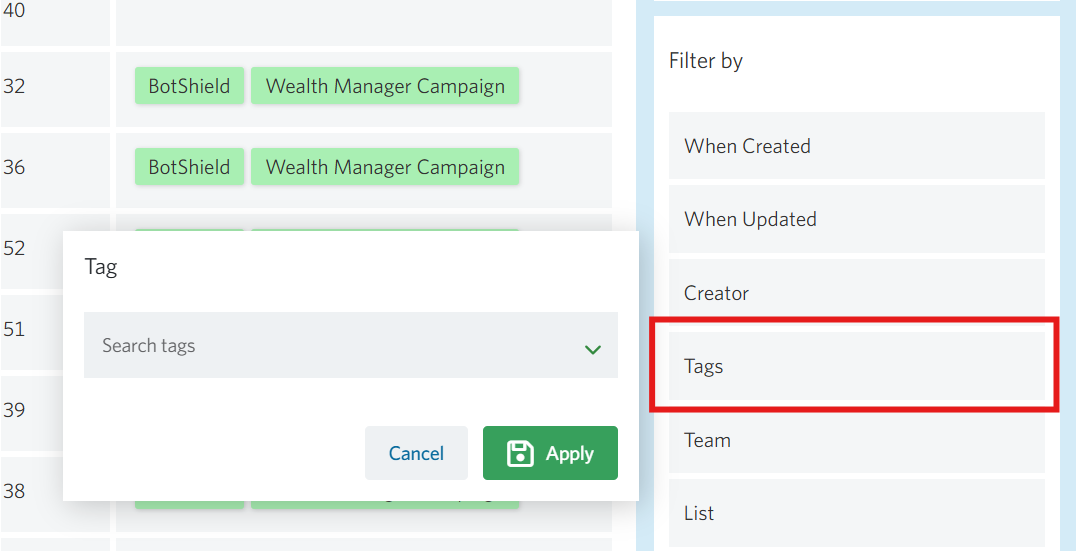
You can search your emails and campaigns based on Tags by using the Filter by Team option on the right-hand side.
Assigning regular tags as lead scoring or content tags
To assign regular tags as lead scoring or content tags, follow the steps below:
- Navigate to Options > Tags

- Search for your tag using the search bar on the top right of the page

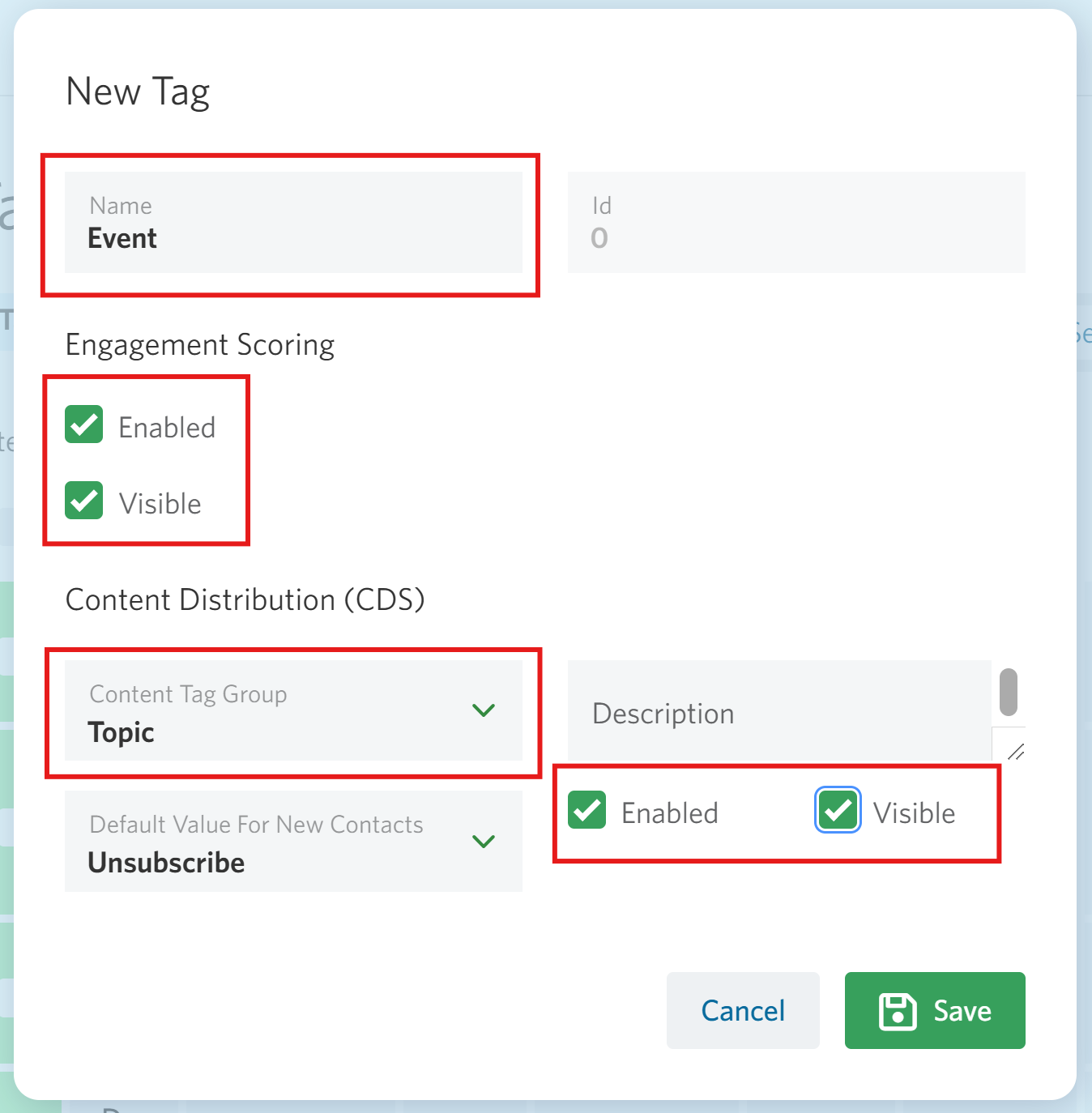
- Click into your tag and a popup will appear. From here you can enable it as lead scoring or assign it to a content tag group which will automatically make it a content tag


FAQ
Can you create content tags via the API?
No, you can create regular tags via the API, but you’ll need to assign them as lead scoring or content tags in the StoneShot platform. More detailed instructions can be found on our Tags page.