









StoneShot Learning > Integrations > StoneShot for Sales – Campaign Reports
StoneShot for Sales – Campaign Reports
StoneShot for Sales lets you drill into the performance of any email you’ve sent, so you can see exactly how your contacts are engaging.
Accessing a Report
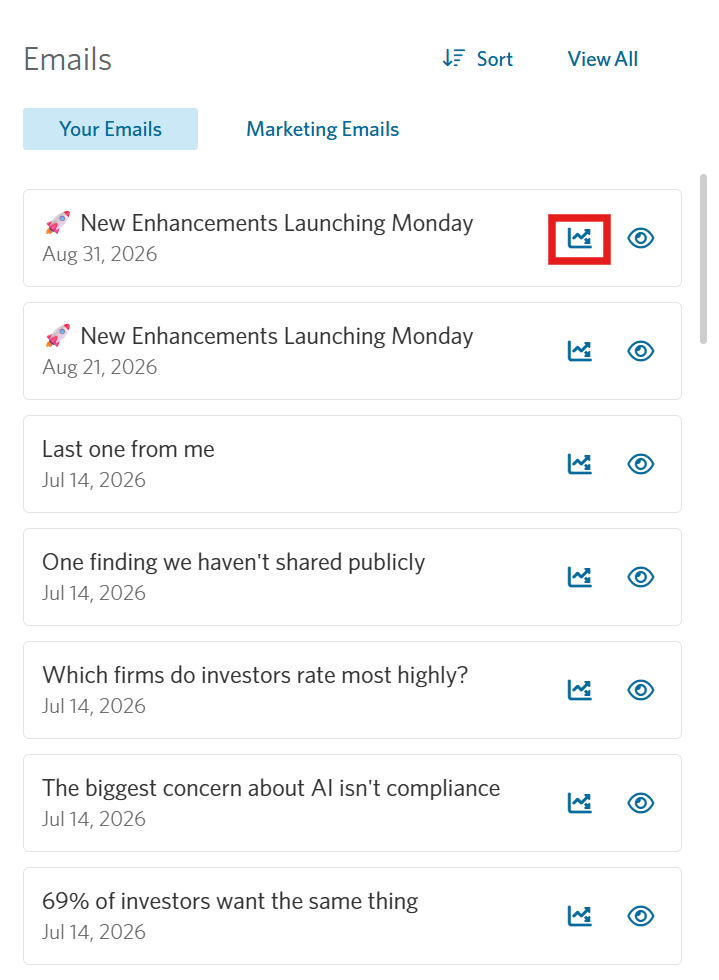
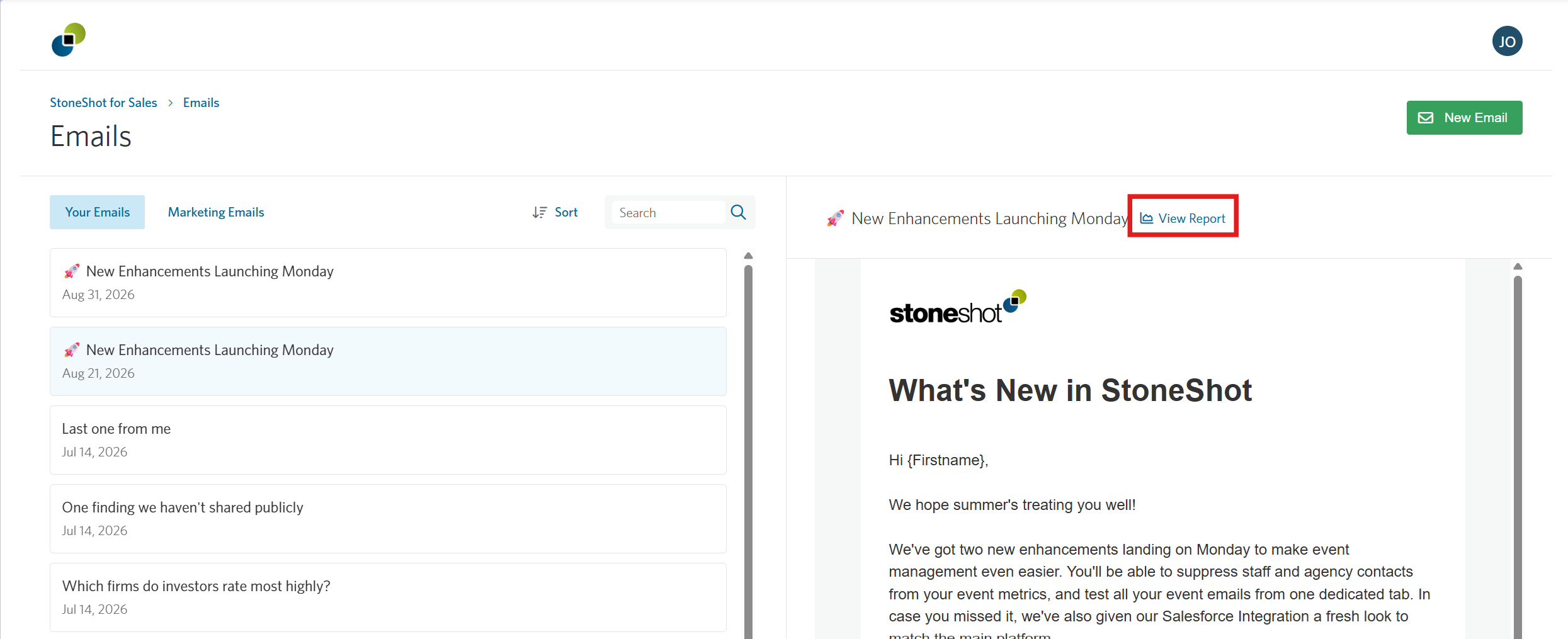
Reports are accessible directly from the Emails panel on your dashboard via the Reports icon, or from the dedicated Emails page. Select View All to go to the Emails page, then select an email to open its preview, and select View Report to see its full campaign report.
Your campaign report shows detailed performance metrics for the email, scoped to your own contacts only.
Key Metrics
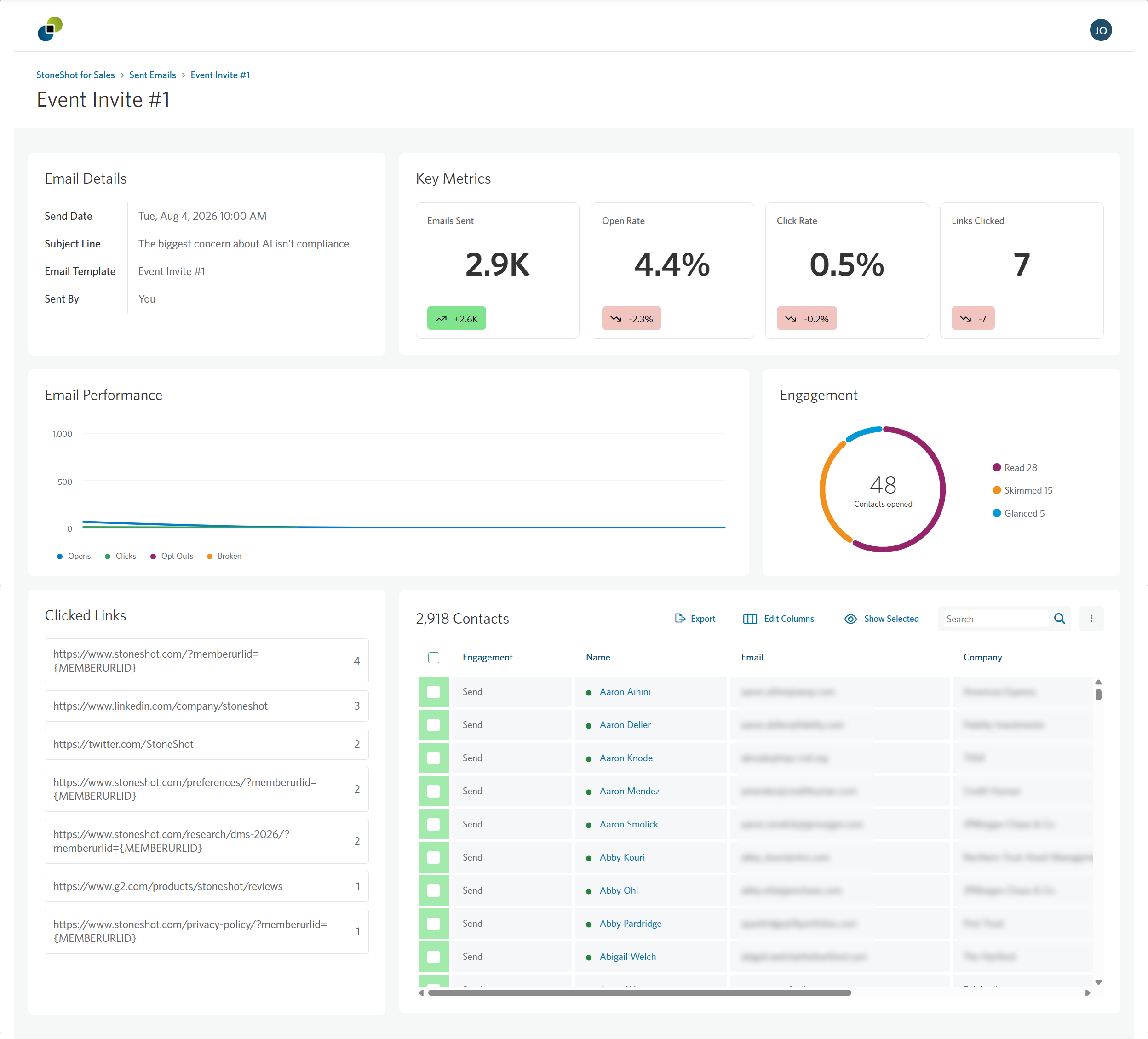
At the top of the report are the email’s launch details, alongside its key metrics:
- Sends – the number of emails sent
- Open Rate – the percentage of unique contacts who opened the email
- Click Rate – the percentage of unique contacts who clicked a link in the email
- Links Clicked – the number of unique link URLs clicked
Hover over the trend indicator on any metric to see how it compares across the previous 30 days.
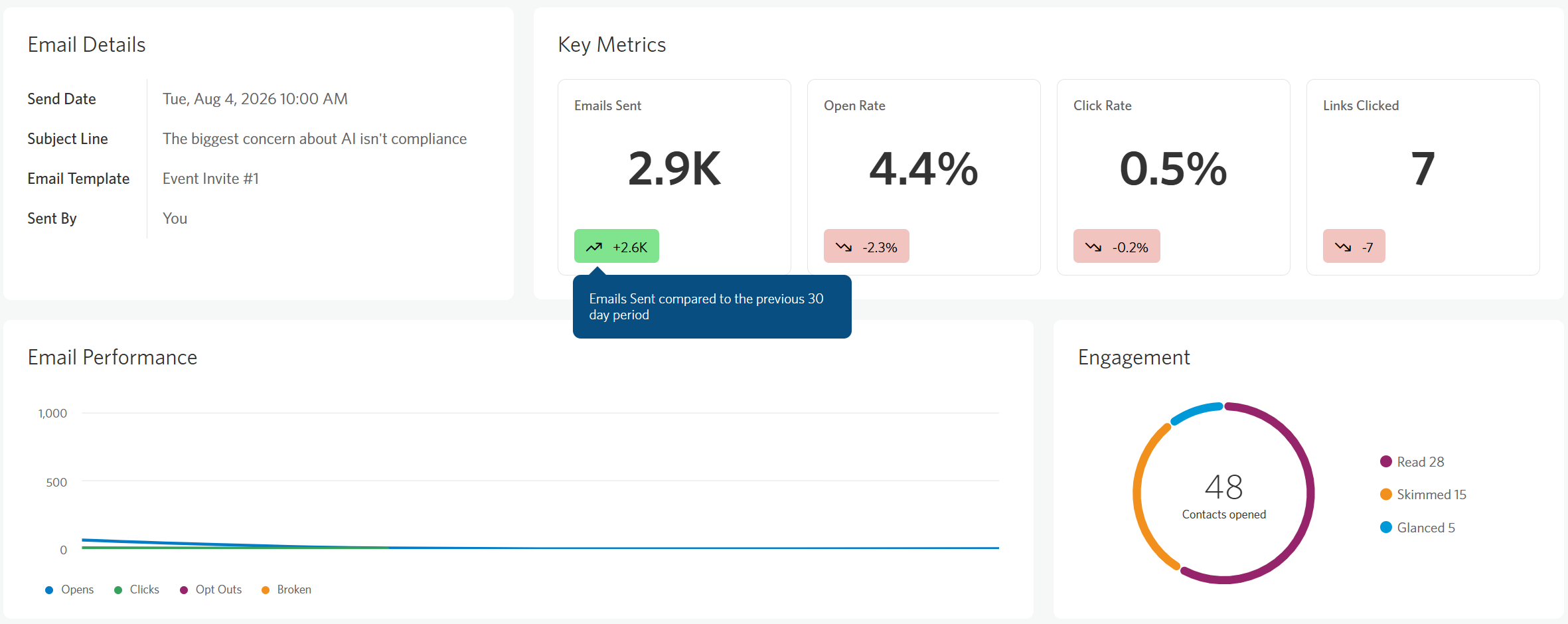
Below the key metrics are two graphs. Email Performance tracks opens, clicks, opt-outs, and bounces over time, while Engagement shows the breakdown of read engagement across the email by percentage.
Clicked Links
The Clicked Links panel lists each link in the email alongside the number of contacts who clicked it.
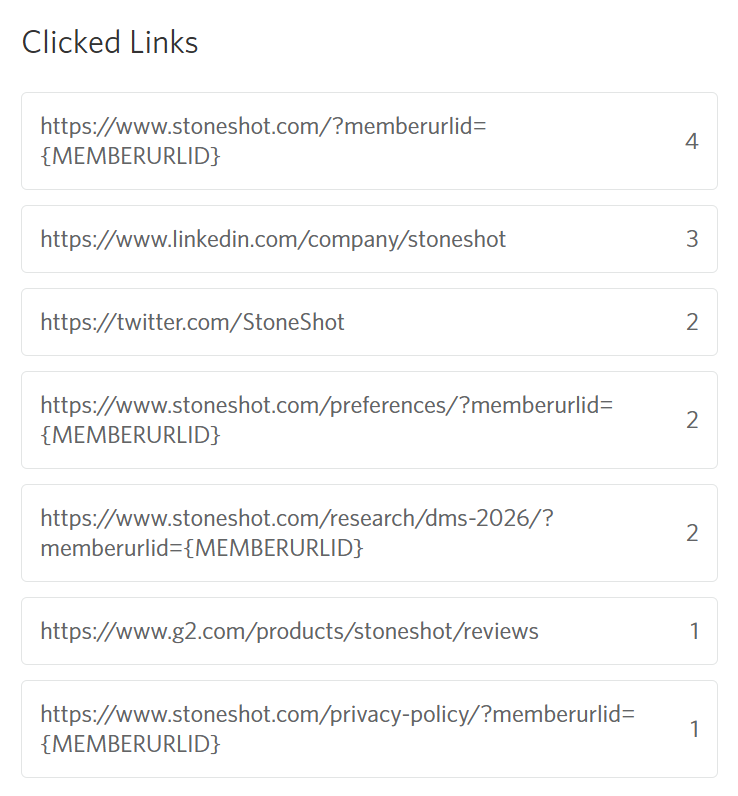
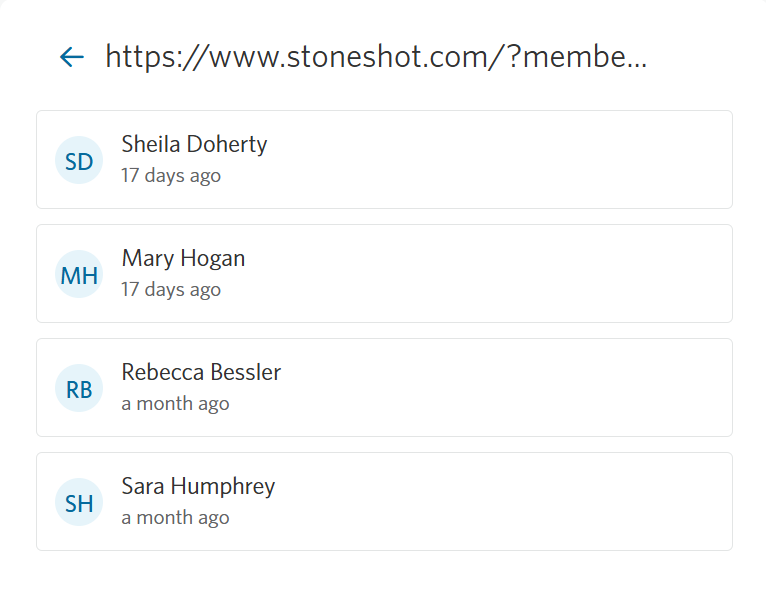
Select a link to see the individual contacts who engaged with it, then select a contact to go to their contact record.
Contacts Grid
Finally, the Contacts Grid shows every contact who was sent the email and is assigned to you. Each contact appears once, with their activity consolidated into a single row. The Engagement column highlights each contact’s highest level of engagement, so you can scan performance at a glance.
You can customize the table by reordering columns, sorting data, and applying filters. Each column includes filter and sort options, allowing you to refine the data based on specific criteria.
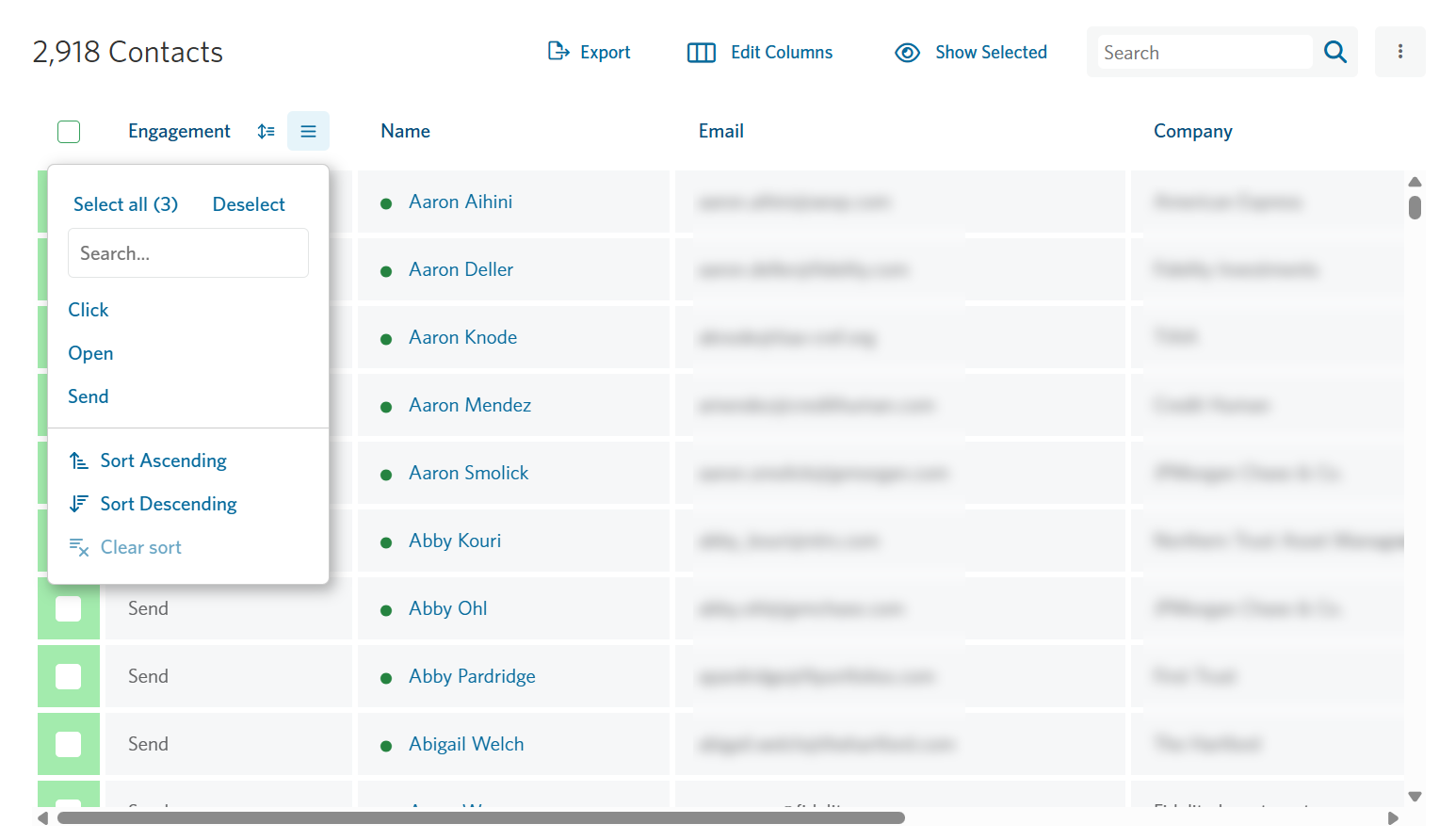
The Edit Columns option lets you control which fields are visible and their order; the Engagement column stays first and can’t be reordered.
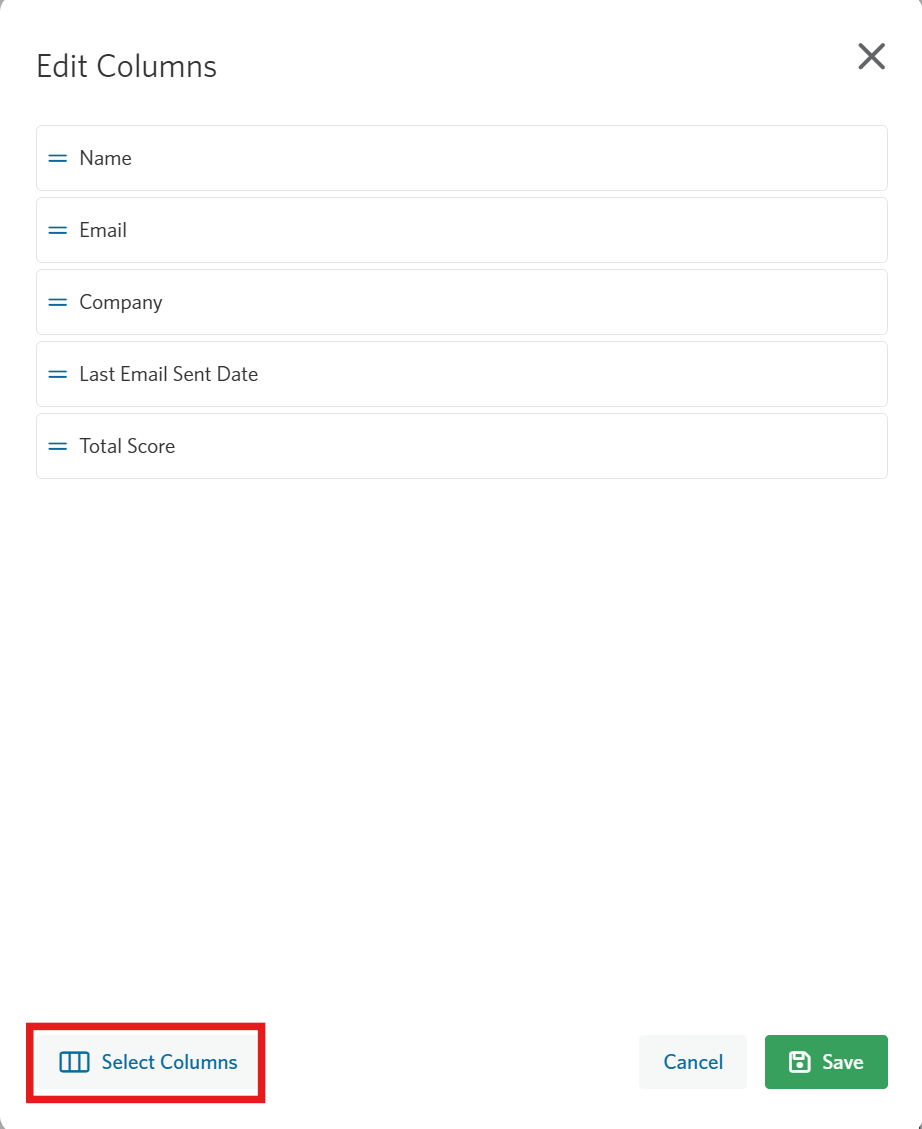
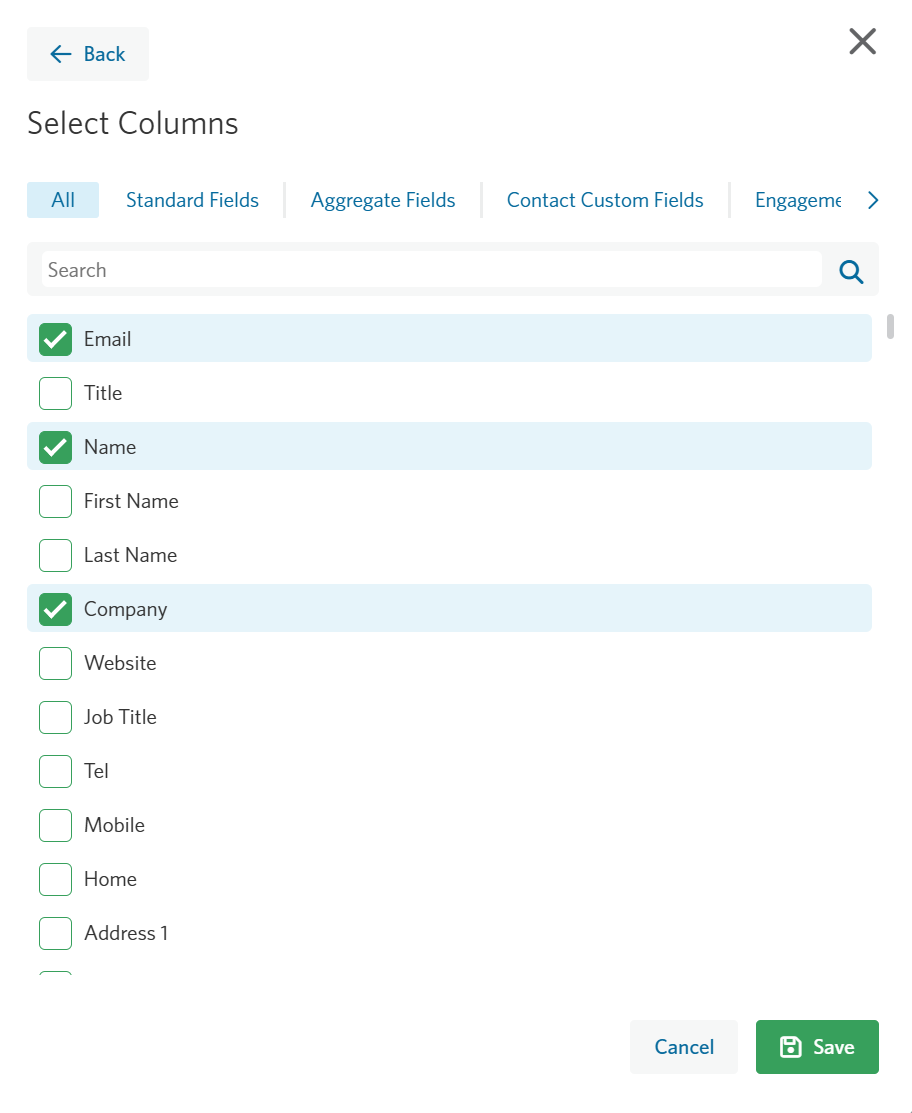
To edit the columns displayed, click Select Columns and toggle on/off the fields you’d like to add to the Contacts Grid.
You can export the table to Excel or use the search bar to find specific contacts.
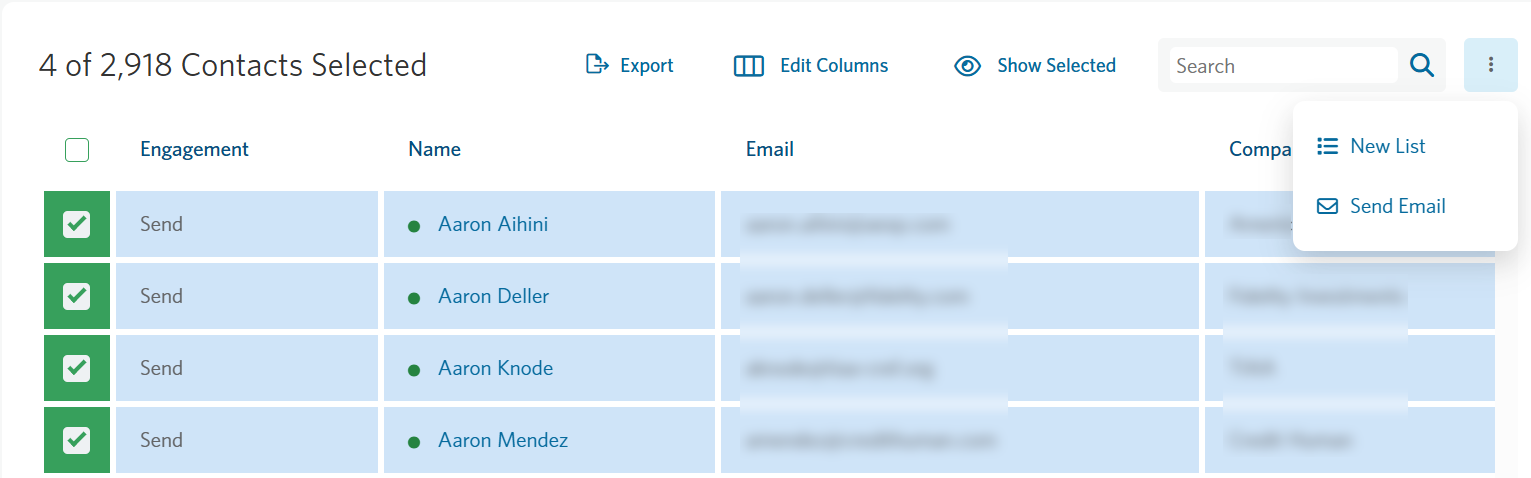
Lastly, selecting one or more contacts and opening the three dots menu lets you create a new static list from your selection or send them an email directly, taking you into the New Static List or New Email flow.