








StoneShot Learning > Event Marketing > Testing Event Emails and Forms
Testing Event Emails and Forms
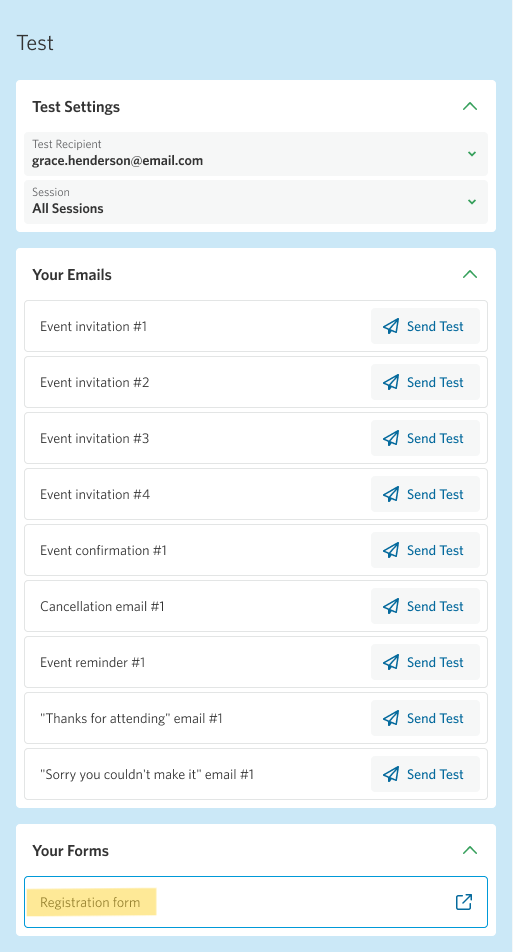
Testing your event emails and registration form before you send is one of the best ways to make sure everything looks and works as expected. The Test tab in the Event Builder gives you a single place to test all of an event’s emails and preview its registration form.
Sending Test Emails
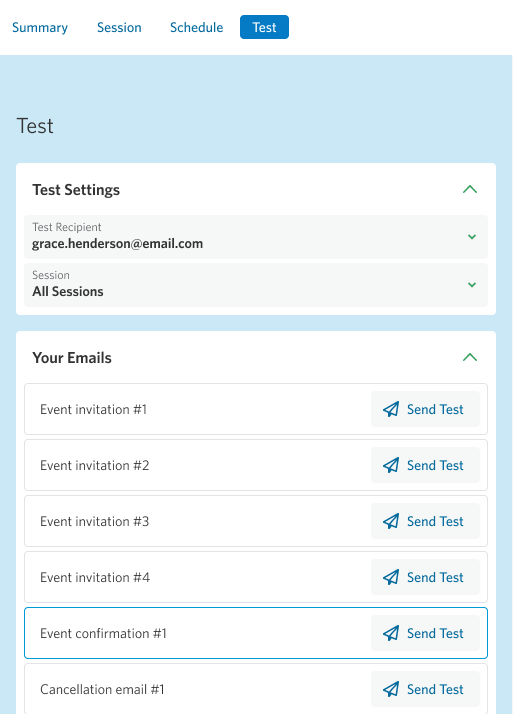
- Open the Test tab within the Event Builder.

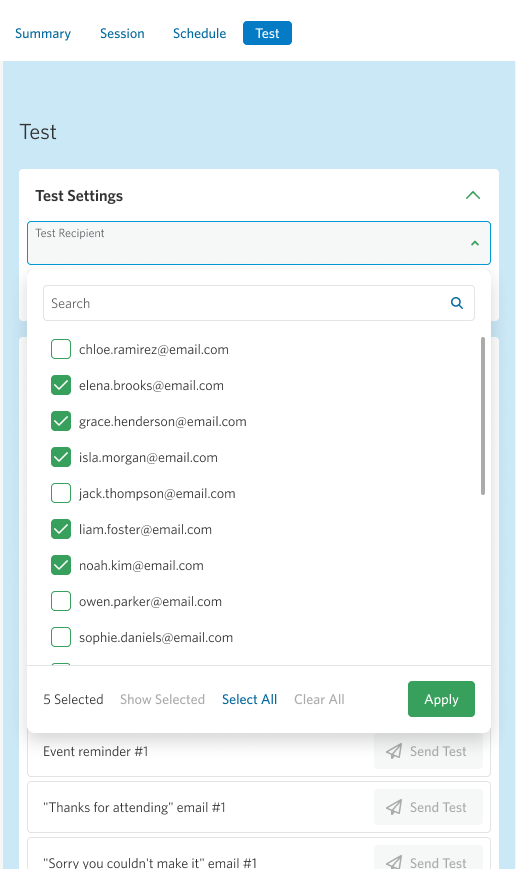
- Choose one or more test recipients from the dropdown. By default, this is set to the currently logged-in user.

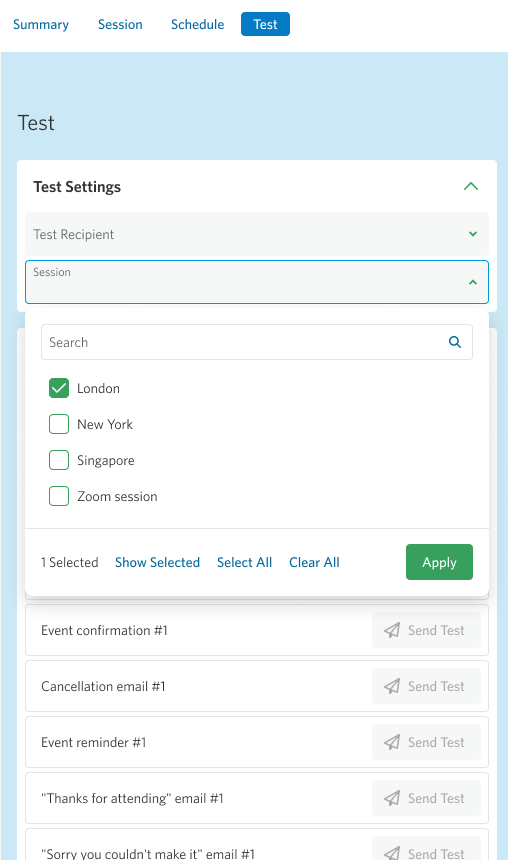
- Choose one or more sessions from the Session dropdown. By default, all sessions are selected.

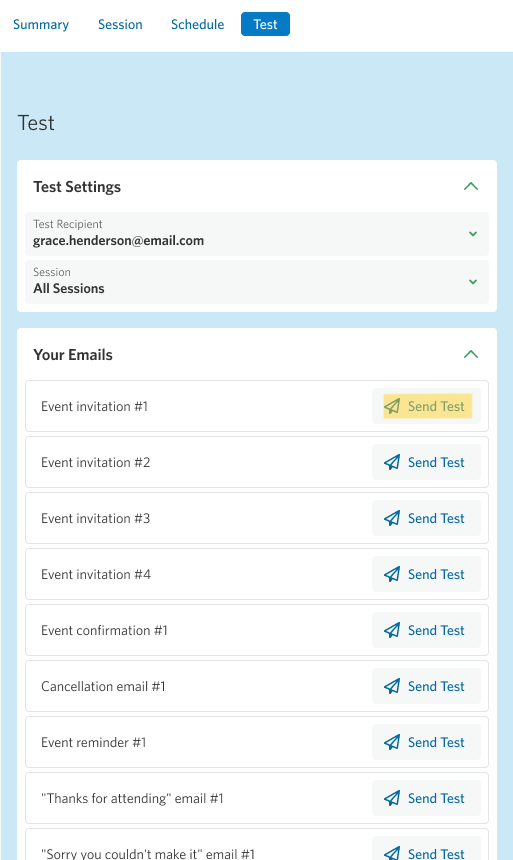
- Once a recipient and session are selected, the Send Test button next to each event email becomes active. Click it to send a test of that email directly to your chosen recipients.

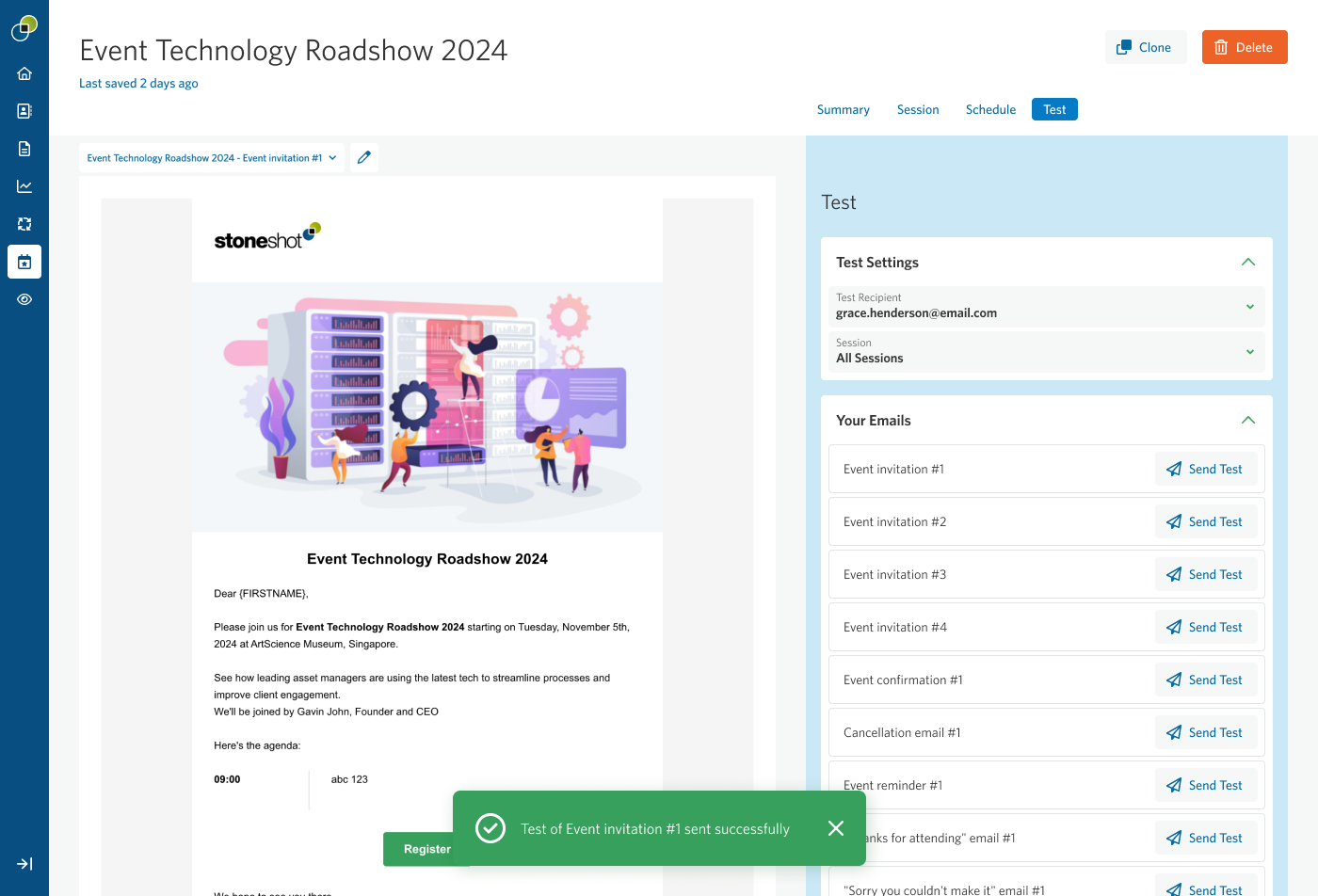
- A notification will let you know when the test is sending and when it’s been sent successfully.
Opening an email in the Email Builder
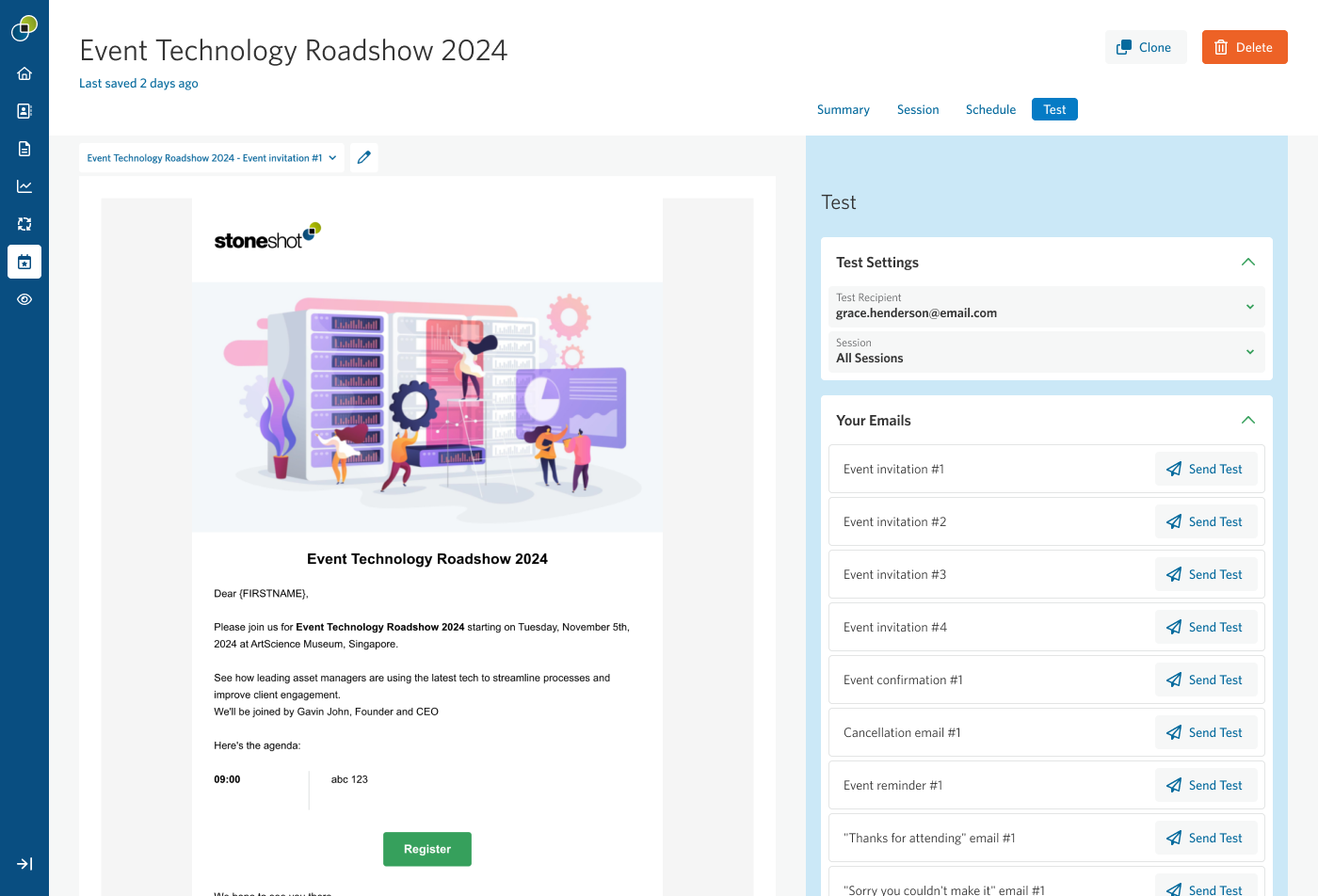
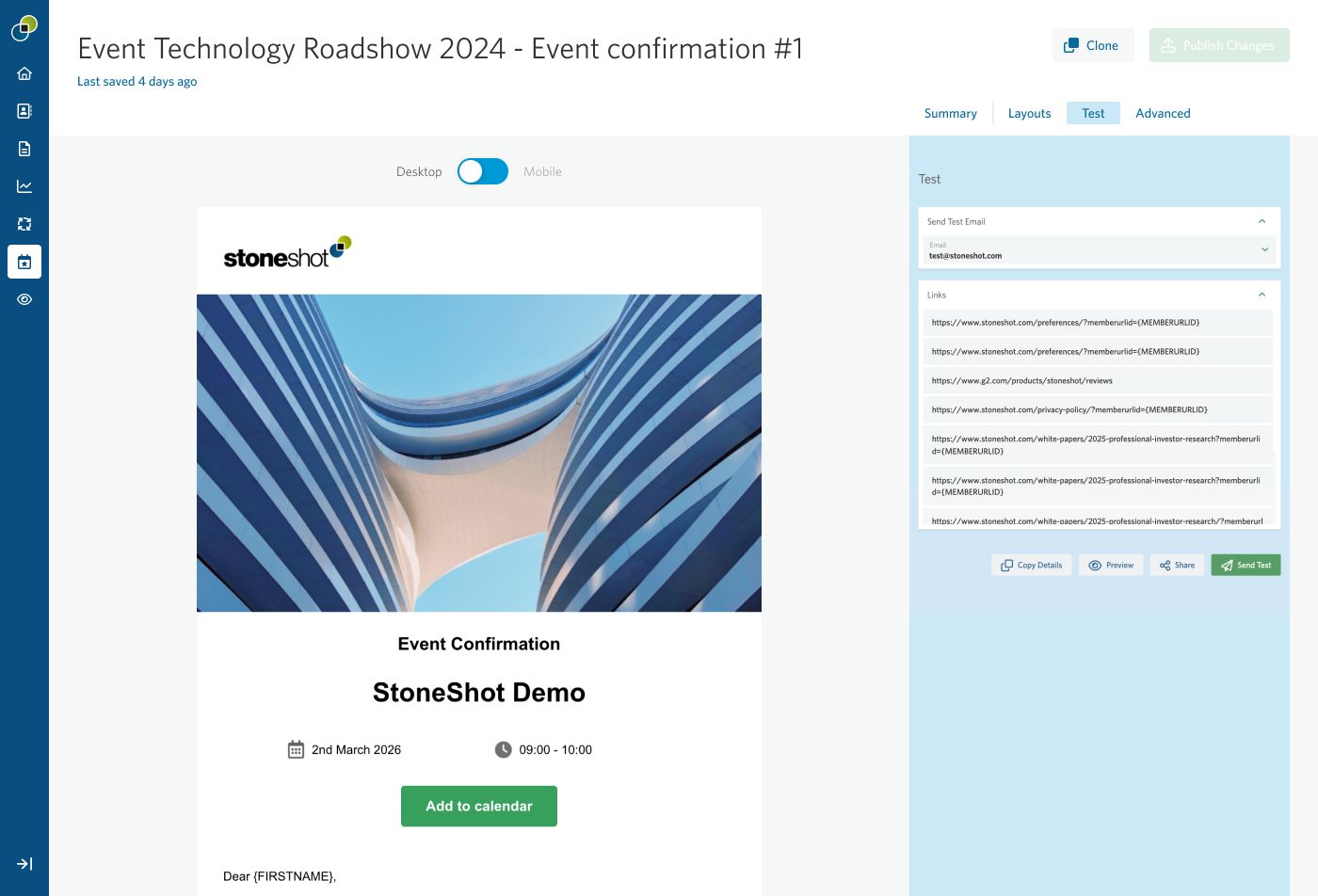
Clicking directly on an email item (rather than the Send Test button) opens that email in the Email Builder, landing on its test tab.
From here, you can access the usual functions of the Email Builder, such as editing the email or publishing changes. See Editing Event Emails to learn more.
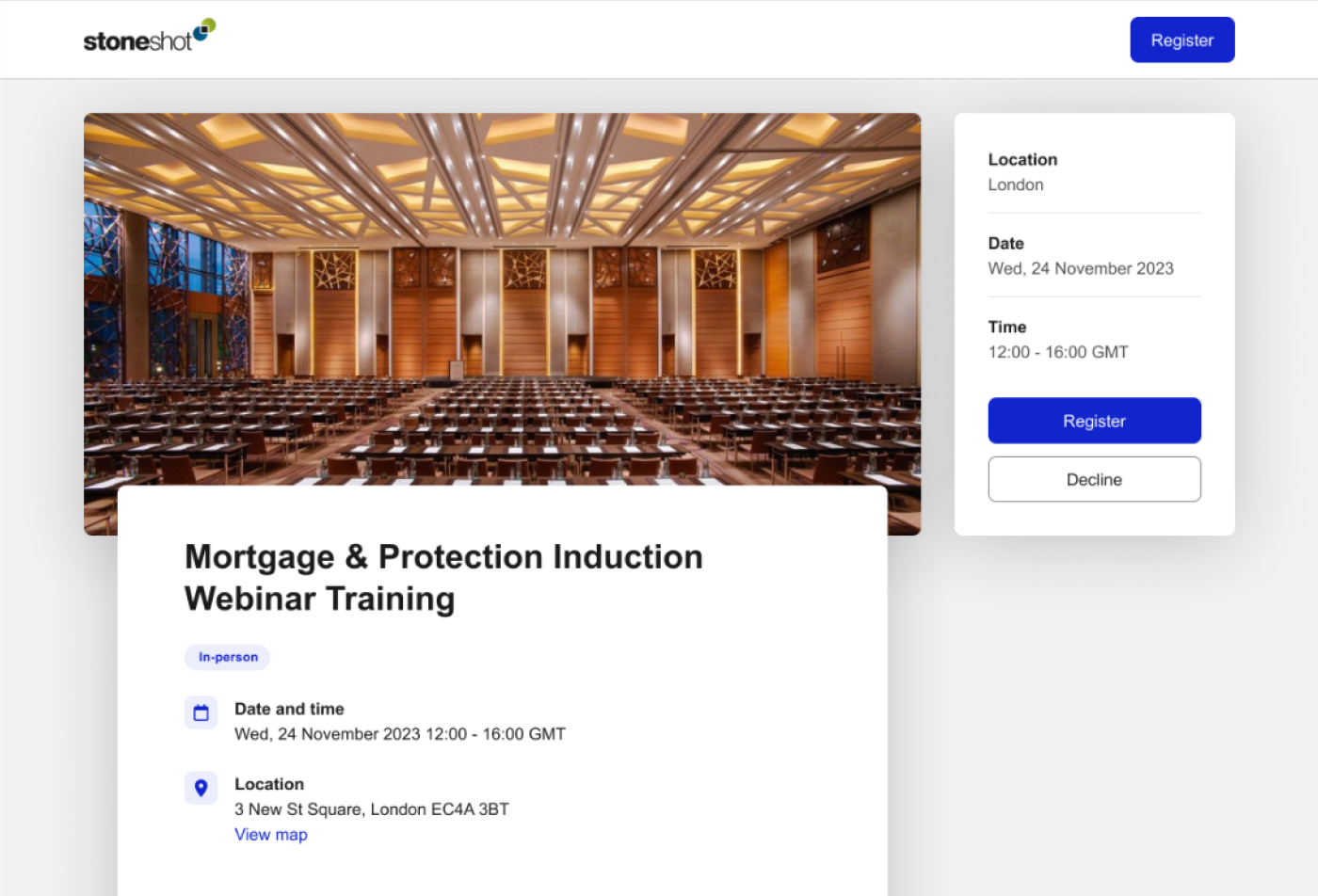
Previewing your Registration Form
Click the form preview icon in the Test tab to open a preview of the registration form in a new tab.