









StoneShot Learning > Integrations > Salesforce FAQ
Salesforce FAQ
FAQ
Why can't I see my Salesforce campaign in the SF campaign dropdown?
For a Salesforce campaign to appear in the dropdown within StoneShot, it must meet the following criteria:
- Active Status: The campaign must be marked as Active in Salesforce.
- User Access: The campaign must be accessible to the StoneShot Salesforce integration user.
- Recent Activity: The campaign must be one of the 250 most recently modified campaigns in Salesforce, as the Salesforce API only returns the most recent campaigns based on last modified date.
If your campaign does not meet all of these conditions, it may not appear in the dropdown list.
Can we sync with leads, contacts and person accounts?
Yes, we can sync contacts, leads and person accounts. Contacts sync by default, so if you find that leads or person accounts are not syncing, then please let us know.
What’s the difference between a field sync, report push and marketing list push?
The field sync automatically runs every few minutes and keeps all fields in sync. Report push and campaign member list push only syncs the contacts in the list when pushed across to the StoneShot platform.
Which fields are synced and when on new contact creation, list push and overnight sync?
The sync agent runs every few minutes and checks for any changes to CRM records since the last sync. If any updates are found, it then pushes them to the StoneShot platform. Then we have:
- New contact creation – If “Auto create contacts in StoneShot” is enabled, then the sync agent will automatically create the record in StoneShot and sync any mapped fields.
- Campaign member list / marketing list push – This will push all campaign members to StoneShot and sync any mapped fields
- Overnight sync – The full overnight sync agent does a full compare between the two platforms and then updates the StoneShot platform with values from Salesforce (dependant on the rules around how data is pushed between the two platforms). So, this sync doesn’t just look at what has been updated in Salesforce but also new contacts that have been created.
Can StoneShot activity sync back to Salesforce campaigns?
Yes, StoneShot activity is automatically synced, however, event activity might require your event to be manually linked to your Salesforce campaign (depending on your sync settings).
How do I create a Salesforce user?
We can’t create a Salesforce user, but your CRM team should be able to do that. We can then link your StoneShot account to your Salesforce account if needed.
How can I get my Salesforce contacts into StoneShot?
Below are a few ways you can get your Salesforce contacts into StoneShot:
- Push a campaign member list
- Import Salesforce report
- Import CSV by Salesforce ID
- Auto create contacts in StoneShot when they are created in Salesforce. Please note this only applies to new contacts, not existing contacts. (To enable this, you would need to go to Setup > Workflow Rules in Salesforce. There, you will see a workflow rule called “Add contact to StoneShot” – you’ll need to enable that)
Do all contacts added to Salesforce get added to StoneShot?
No, unless you have “Auto create contacts in StoneShot” Salesforce option enabled.
How do I add contacts in StoneShot to Salesforce?
In Salesforce we have a “contact management” tab containing a number of reports including “new contacts/leads” reports.

Why do some contacts not show in the "new contacts" report in Salesforce?
The “new contacts” report shows all new contacts excluding those that were created via an import.
Can I sync a Salesforce list with a StoneShot one?
You can if you use a StoneShot dynamic list and sync segments from Salesforce, however, you can’t sync a campaign list or report – those need to be pushed each time.
What account type do I need to have as the sync user? Is it a standard user or system user?
Any user as long as the account has admin permissions and access to contact and company data in the CRM.
Which kind of Salesforce fields can we sync to/from?
We can sync text fields, checkboxes and dropdowns (single select). However, we cannot sync multi-select fields.
Where can we see StoneShot data objects in Salesforce and how do we use them in Salesforce Reports?
Salesforce admins can view StoneShot data in the object area of Salesforce. All users can create CRM reports based on these CRM objects.
How often do data objects update?
The frequency depends on your StoneShot account settings, but the default is every few minutes.
Why am I seeing duplicate contacts in StoneShot created by Salesforce?
Invariably it’s because you have multiple records in Salesforce.
How do I add additional fields to the field mapping in Salesforce?
Only the Salesforce sync user/admin can add additional fields. To do this, follow the below steps:
- Click on the cog icon in the top right hand corner of the StoneShot tab in Salesforce.

- Scroll to the bottom of the page and click on the “Configure” button at the bottom of the “Field Mappings” section.

- Add all the relevant fields. Note: each field can be mapped separately, with either CRM or StoneShot as the master, or bidirectional.


I can't add any more fields to the Salesforce sync - is there a limit?
There is no limit, you might have to zoom out to see the configure button to map more.
Why has the sync stopped working?
The most common issues are:
- When a sync account:
- is not authenticated
- is disabled/inactive
- does not have valid credentials
- If a StoneShot field has been deleted while mapped in Salesforce/Dynamics
If unsure, then please email support@stoneshot.com.
How do I sync a StoneShot event with a Salesforce campaign?
It depends on your account’s event settings. It’s usually setup to automatically create a SF campaign upon creating an event. Otherwise, you’ll need to manually map the event to the Salesforce campaign via the Salesforce campaign dropdown in the event session settings.
Why can't I see my Salesforce campaign in the SF campaign dropdown?
The SF campaign must be:
- marked as ‘Active’ in Salesforce
- accessible by the StoneShot/Salesforce user
- in the 250 most recent campaigns (by last modified date)
What happens when a SSO user is disconnected in Salesforce?
The user will no longer be able to login using SSO.
What’s configurable on the SF embeds and which parts can be removed?
By clicking the cog icon on the top right of the page you can add, remove and arrange stats/charts on your dashboard.
If contacts are removed from Salesforce will they also be removed in StoneShot?
Yes, as long as the Salesforce integration settings have the “delete in StoneShot” option enabled. When this setting is active, any contact deleted in Salesforce will also be deleted in StoneShot during the next sync.
If you’re unsure whether this option is enabled, our team can help you check your integration settings.
How do we add new segmentation from Salesforce into StoneShot?
If you’ve created new segmentation or other fields in Salesforce that you’d like to use in StoneShot, the corresponding fields will first need to be created in the StoneShot application. Once the matching fields exist in StoneShot, they must be added to the Salesforce Integration Mappings. This ensures the fields can sync values between Salesforce and StoneShot.
How can I create a list within Salesforce of all contacts that have attended any event?
You can do this by creating a new report in Salesforce. When setting it up, choose the report type Campaign > Campaigns with Campaign Members. This report type includes the Member Status column, which shows each contact’s status for the event.
From there, you can update the filters to suit your needs, for example, add a filter where Member Status = Attended. This will give you a list of all contacts who have attended an event.
If needed, you can also apply additional filters such as date ranges, specific campaigns, or campaign types.
I’m trying to authenticate my account, but I’m getting the error: “You do not have access to StoneShot for Salesforce.” How can I fix this?
This error usually means that the user’s Salesforce Profile hasn’t been granted access to the StoneShot Connected App.
Please ask your Salesforce Admin to check that your Profile is included in the Allowed Profiles for the StoneShot Connected App. They can review this by:
- Going to Setup in Salesforce
- Searching for and opening the StoneShot Connected App

- Scrolling down to the Profiles section
- Confirming that your Salesforce Profile is listed and allowed access

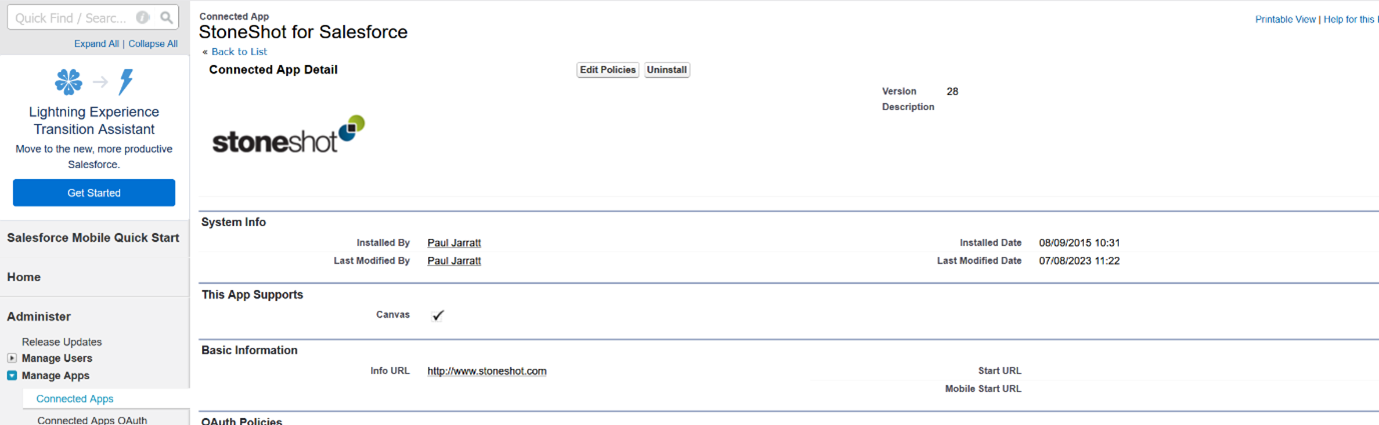

(The specific profile names will vary depending on your organisation.)
Once your profile is added to the allowed list, you should be able to authenticate without seeing the error.
Why do I see bounces in my StoneShot list even though the email addresses look correct and the contacts still work at the firm?
A contact may appear as a “broken email” if their address was marked as a hard bounce at any point in the past. This can happen even if the email is valid today.
For example, if the contact left the firm temporarily (or their mailbox was unavailable), StoneShot would have recorded the bounce. When they return, their status remains marked as bounced until it’s updated manually.
If you’ve confirmed that the contact still works at the firm and the email address is correct, you can restore them so they will receive emails again.
How to update the bounce status:
- Open the contact’s profile in StoneShot.
- Click the pencil icon next to their name.
- Find the “Is contact a bounce?” field and toggle it so it turns green.
- Save your changes.
This will remove the bounce flag and allow emails to be delivered to them again.