








StoneShot Learning > Event Marketing > Event Details
Event Details
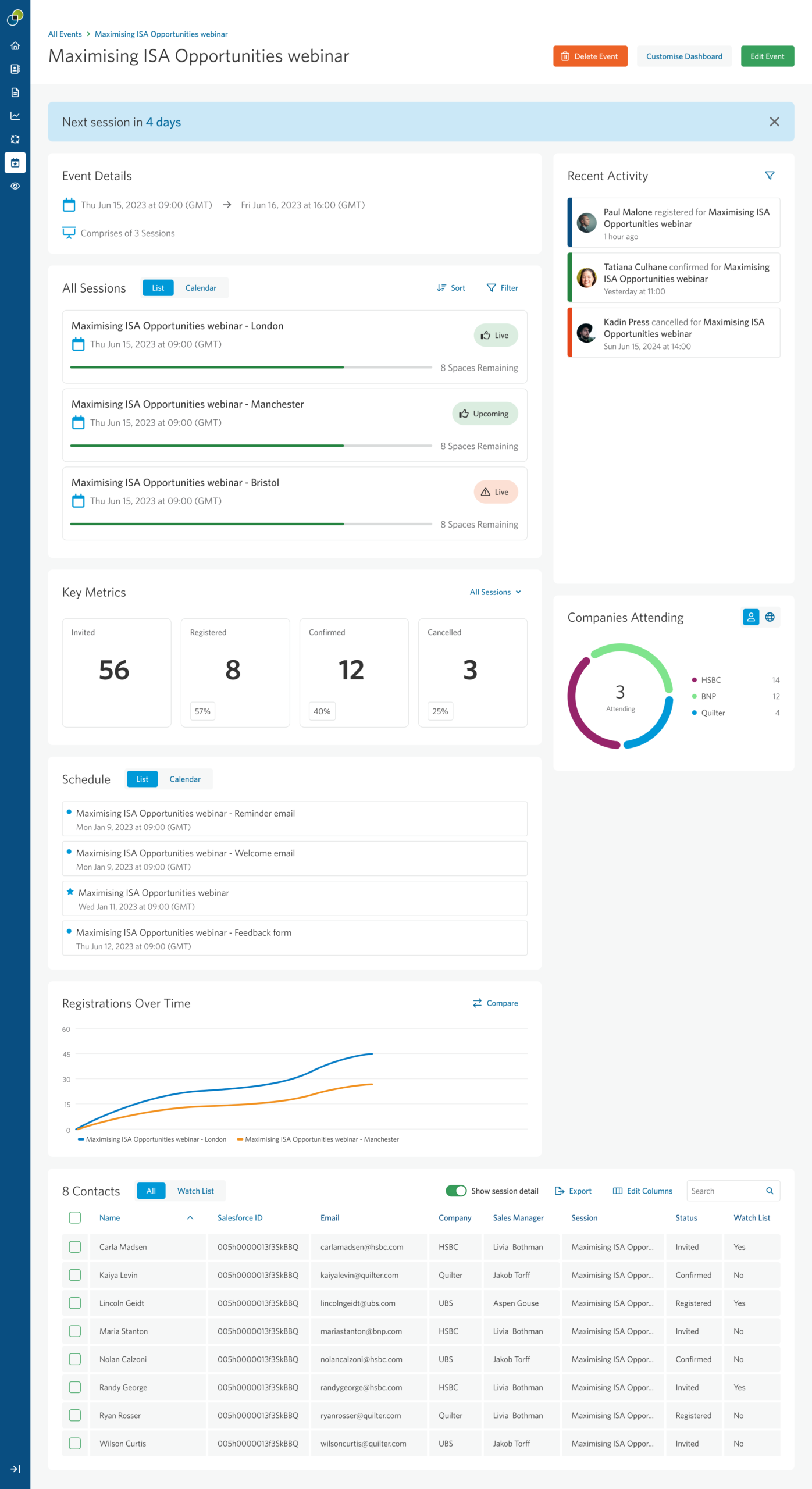
The Event Details page gives you a focused view of an individual event, including performance, activity, and engagement.
The layout varies slightly depending on whether your event has a single session or multiple sessions. For multi-session events, the page provides a high-level overview of the event alongside a list of all sessions. You can click into each session to view more detailed, session-specific performance.
Page Controls and Layout
At the top of the page, you can Delete the Event, Customize the Dashboard, or Edit the Event.
The dashboard is fully customizable, allowing you to choose which widgets are displayed and where they appear. When you select Customize Dashboard, you can reorder widgets or remove them by unchecking the relevant option. Removed widgets are moved to the bottom of the page and can be re-enabled at any time.
Selecting Edit Event takes you to the Event Builder, where you can update event setup and configuration.
Event Details
This widget displays key information about the event and its sessions.
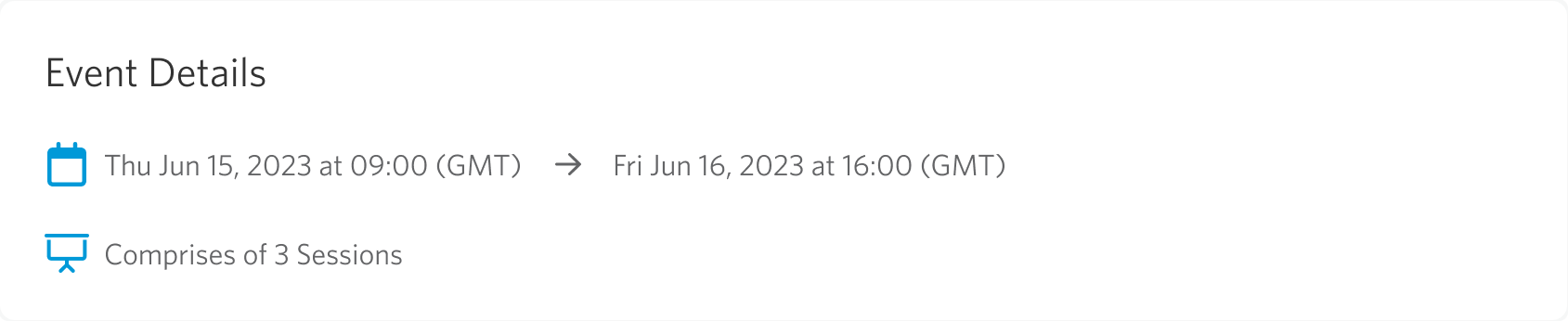
For single-session events, this includes details such as start and end time, speakers, agenda, and venue where available. For multi-session events, it provides a summary across the event.
All Sessions
For multi-session events, the All Sessions widget shows all sessions within the event in one place.
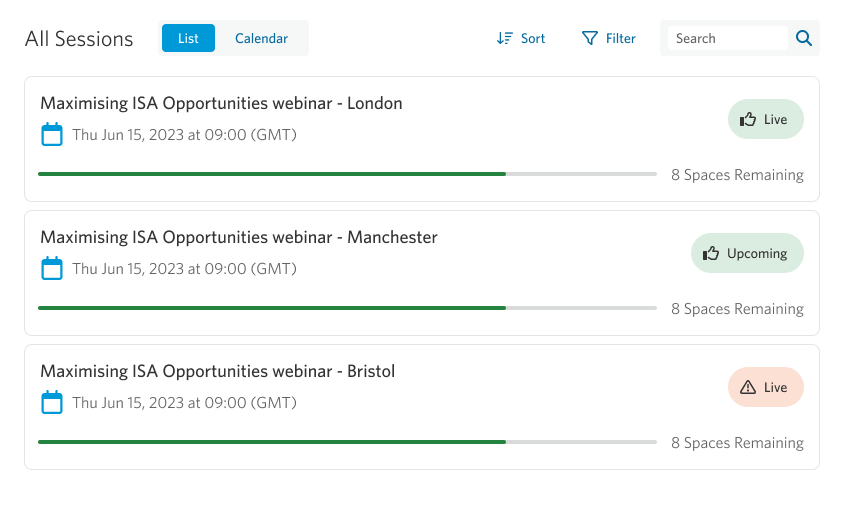
This works in a similar way to the All Events view on the Event Summary page, but is limited to sessions within the current event. From here, you can quickly navigate to individual sessions for more detailed tracking.
Key Metrics
The Key Metrics widget provides a rolled-up view of performance across all sessions in the event.
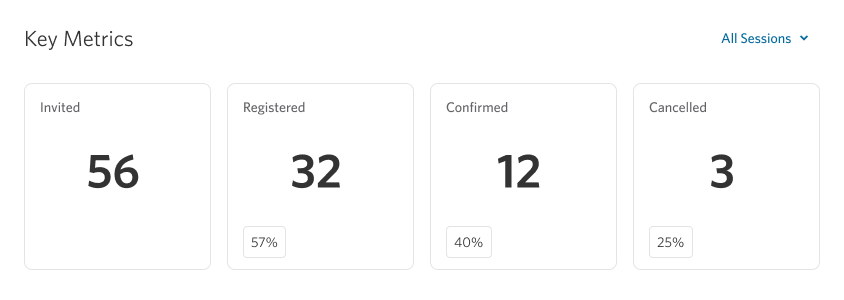
The metrics shown will vary depending on whether the event is in progress or completed. For multi-session events, you can use the session picker to filter the data and focus on specific sessions.
Schedule
The Schedule widget shows all emails planned and sent as part of the event.
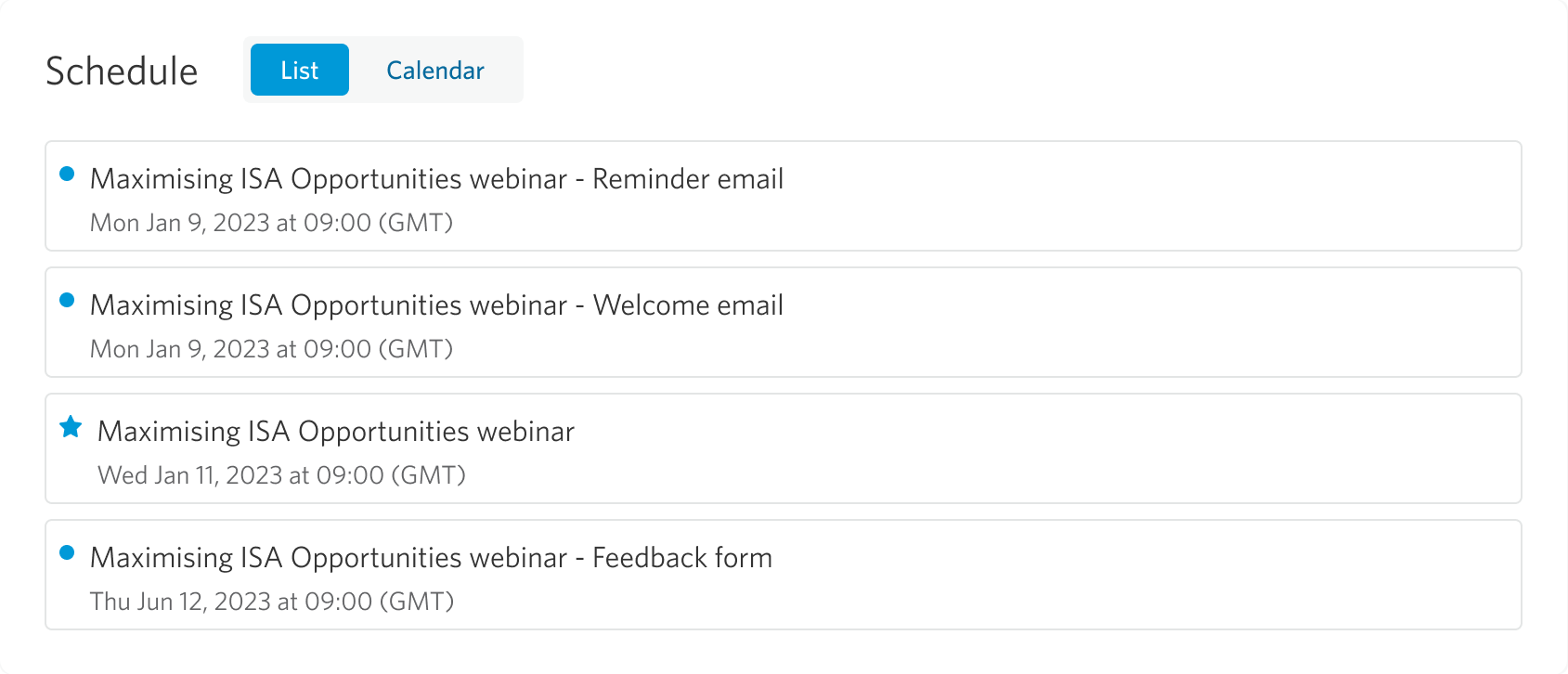
This includes communications configured in “Emails Before Each Session” and “Emails After Each Session.” You can switch between list and calendar views, with the calendar view providing a similar experience to the All Events calendar.
Registrations Over Time
This widget shows how registrations build over time across the event.
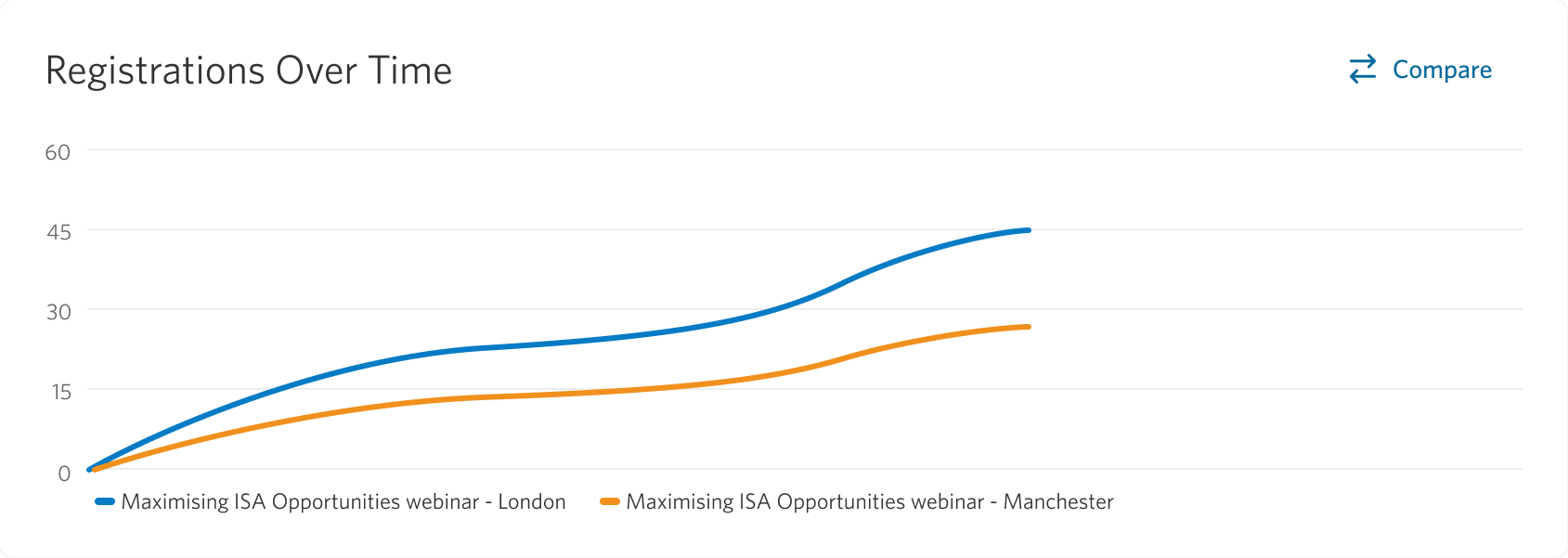
The chart represents the cumulative total of registrations by day, displayed as a smoothed line. The date range runs from when the event went live through to the end of the final session.
For multi-session events, you can compare up to four sessions within the same chart.
Recent Activity
The Recent Activity widget shows real-time engagement for the event.
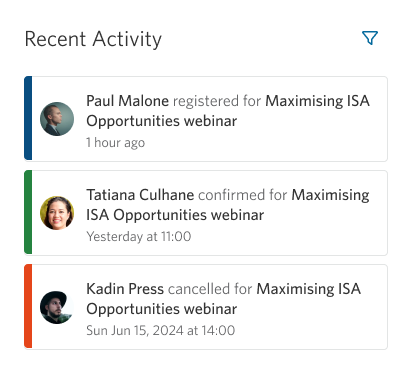
It captures updates as they happen across all contact statuses, excluding the Invited status, giving you a live view of how attendees are interacting with the event.
Companies Attending
This widget highlights the top companies attending your event.
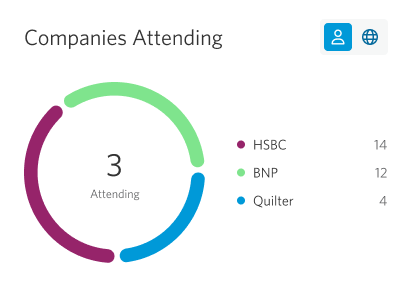
It ranks companies based on the number of associated contacts who are registered, confirmed, or have attended. This view updates as the event progresses, reflecting the shift from registrants to attendees.
Contacts Table
The Contacts Table provides a detailed view of contact engagement across the event.
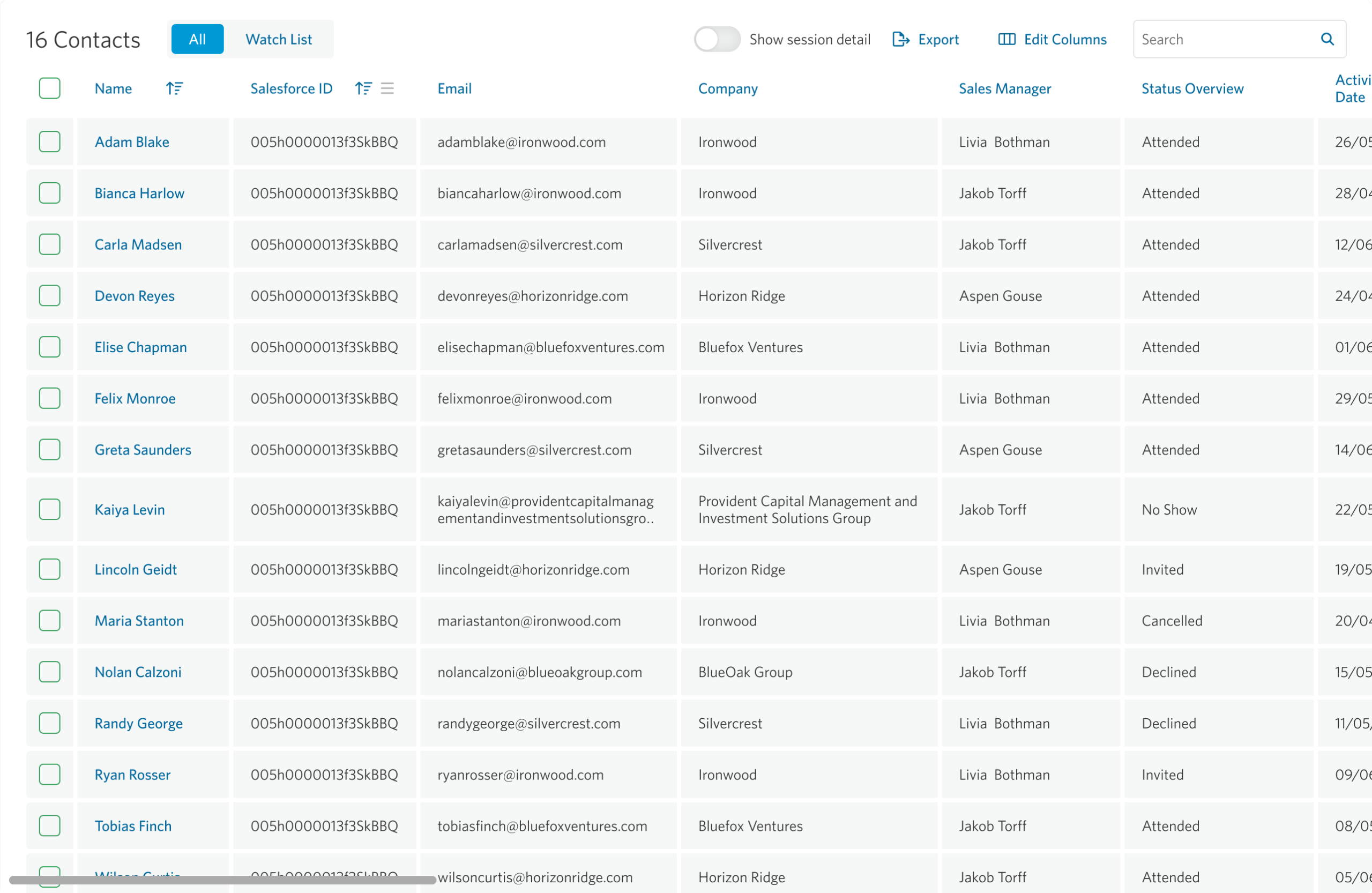
Each contact appears once, with their activity consolidated into a single row. A Status Overview column highlights the highest level of engagement reached, making it easy to scan performance at a glance.
You can customize the table by reordering columns, sorting data, and applying filters. Each column includes filter and sort options, allowing you to refine the data based on specific criteria, including activity date.
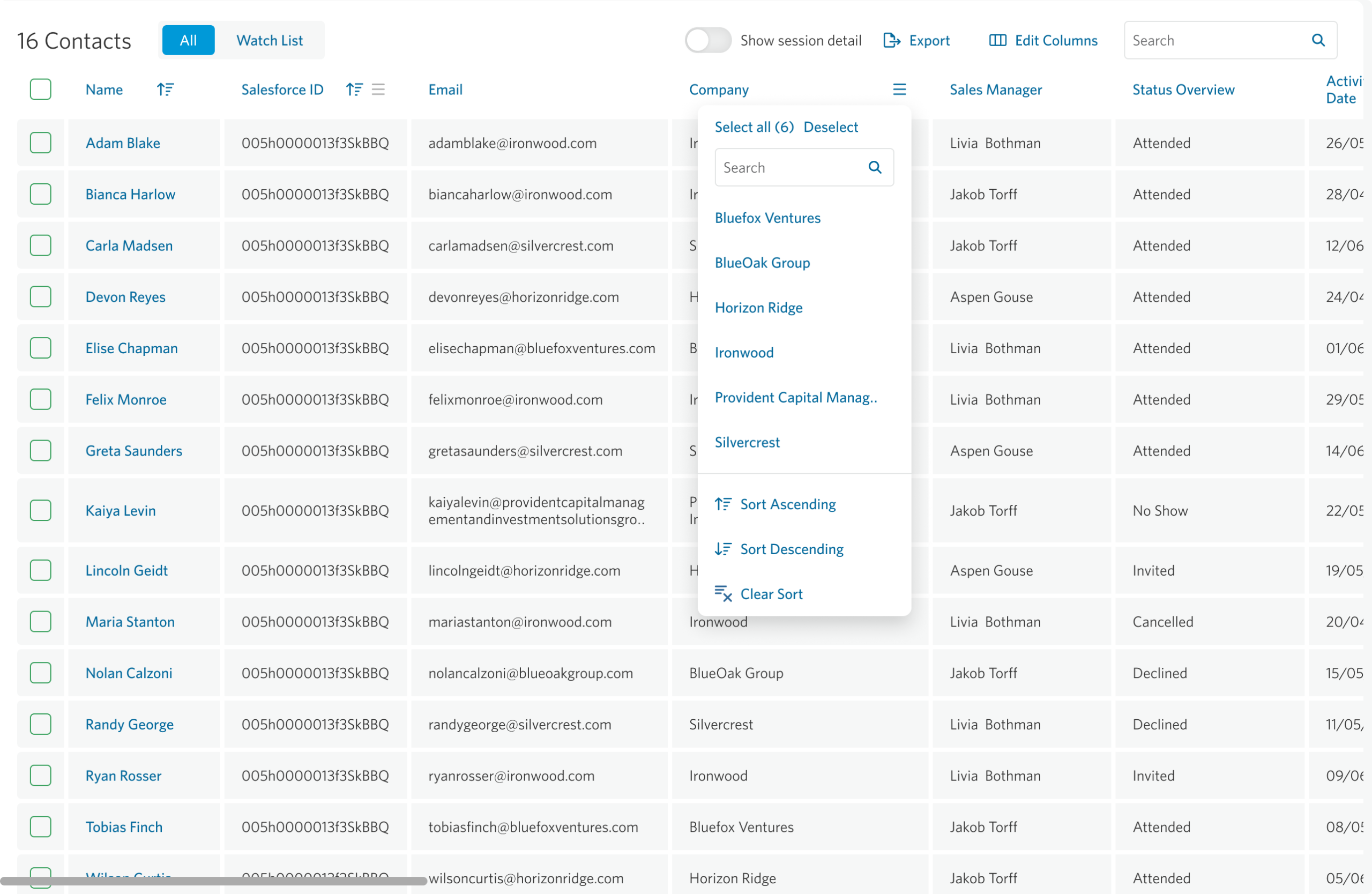
The Edit Columns option lets you control which fields are visible.
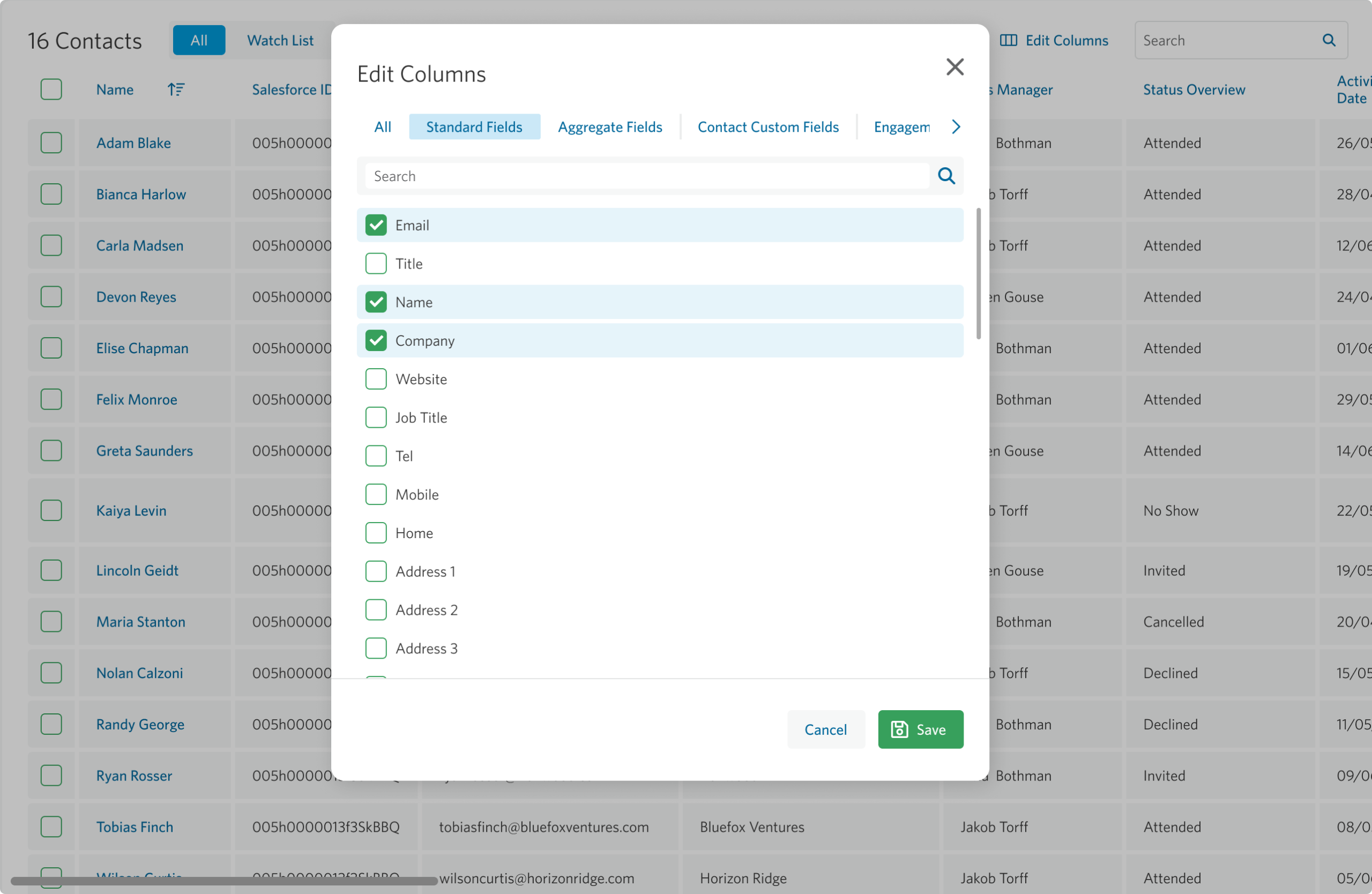
You can also enable a session-level view, which adds a column for each session to give more detailed visibility across multi-session events.
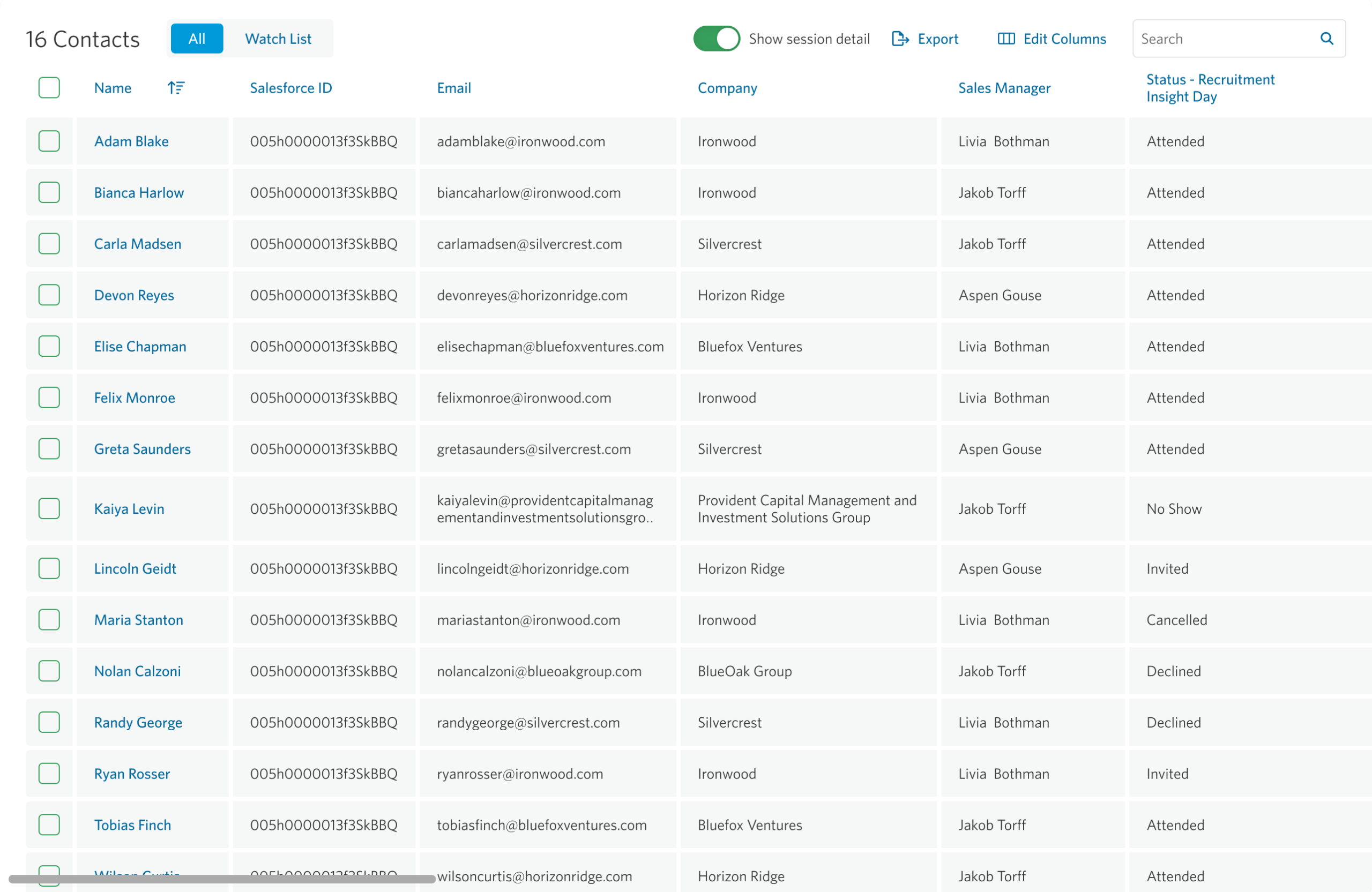
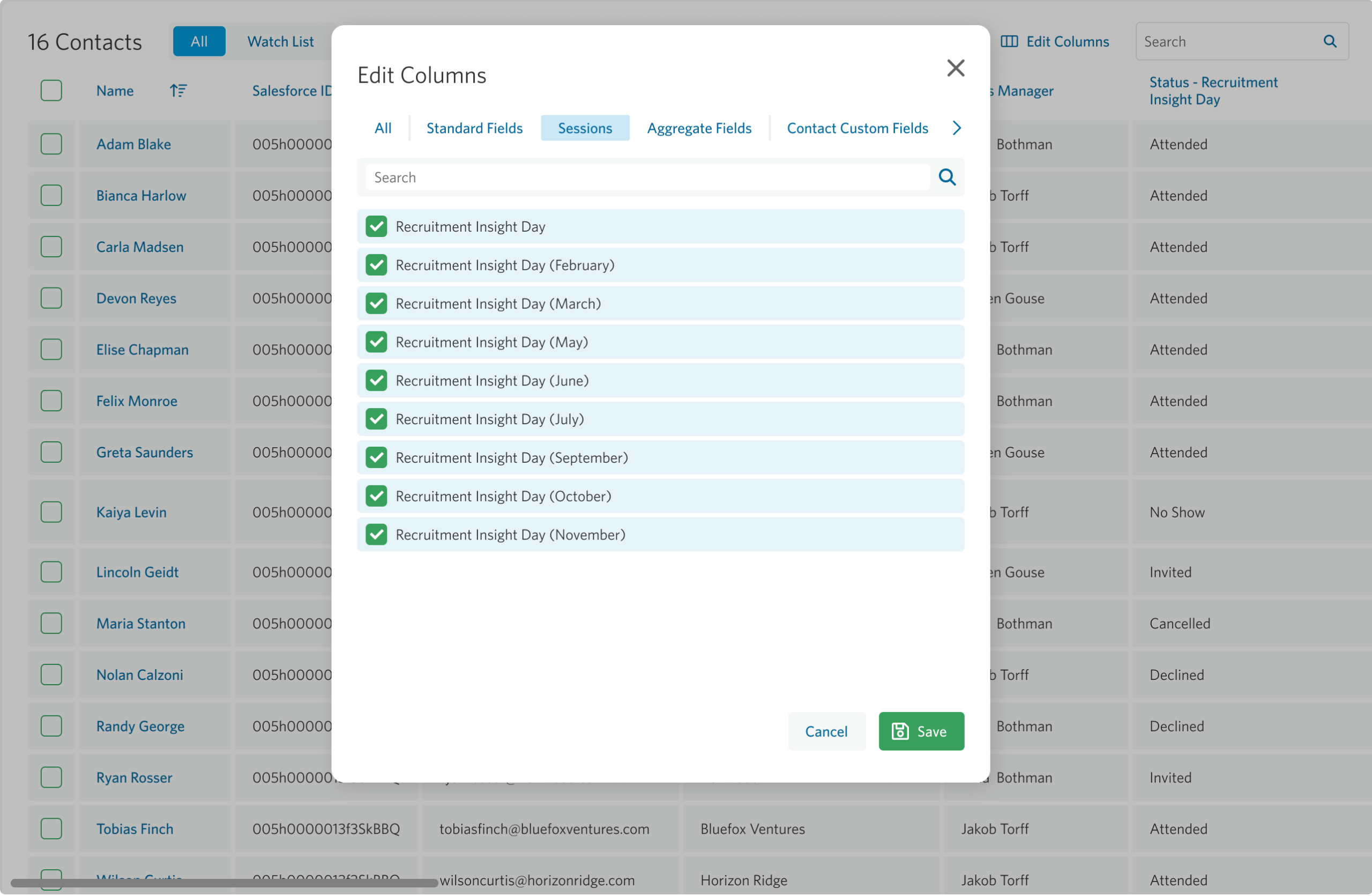
When enabled, a Sessions tab appears in the column settings, allowing you to choose which sessions to display.
You can export the table to Excel or use the search bar to find specific contacts.
Updating a Contact’s Event Status
You can update a contact’s event status directly from the table.
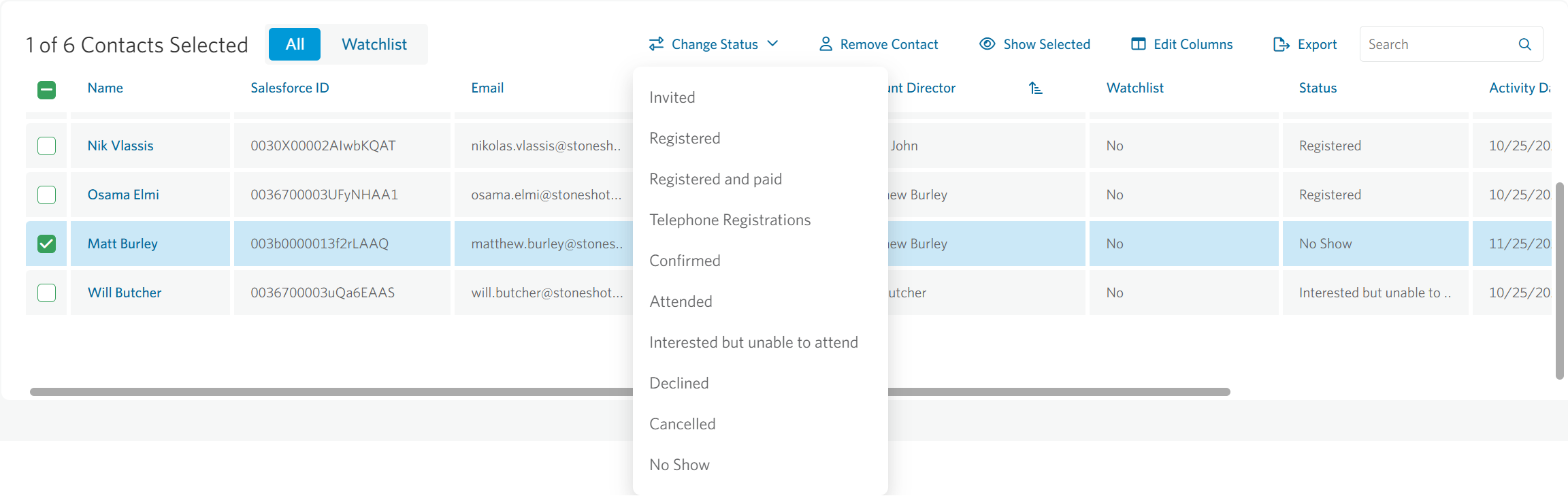
When one or more contacts are selected, a Change Status option becomes available. This opens a dropdown where you can update their status or remove them from the event, returning their status to “Not Set.”
This action is available at the session level. For multi-session events, you’ll need to open the relevant session to manage contact statuses.
For more information about adding contacts to an Event, visit our Inviting page.